
Appearance
Quick start
You need a current Online Store 2.0 theme to display the checkbox. The checkout rule is available on Shopify plans supported by the app. Your store needs a product in the cart for the final test.
- Install Lilya: Terms & Checkbox and select a plan on Shopify's plan page. Development stores can approve a test charge.
- Open Checkbox. Review the sentence, policy links, and error message. Add languages your store uses, then Save. See Edit the checkbox.
- On Home, select Turn on in the theme editor beside App embed in your theme. Switch on Terms checkbox (cart drawer) and Save the theme.
- Return to Home and select Turn on. Check that Consent at checkout, Checkout rule, and App embed in your theme show On.
- Add a product to the cart. Open the cart page or drawer. The checkbox should appear above the checkout button, which remains disabled until consent is saved.
- Tick the box and complete a test order. In Shopify admin, open the order and check Additional details for the consent version, source, and time if time recording is enabled.
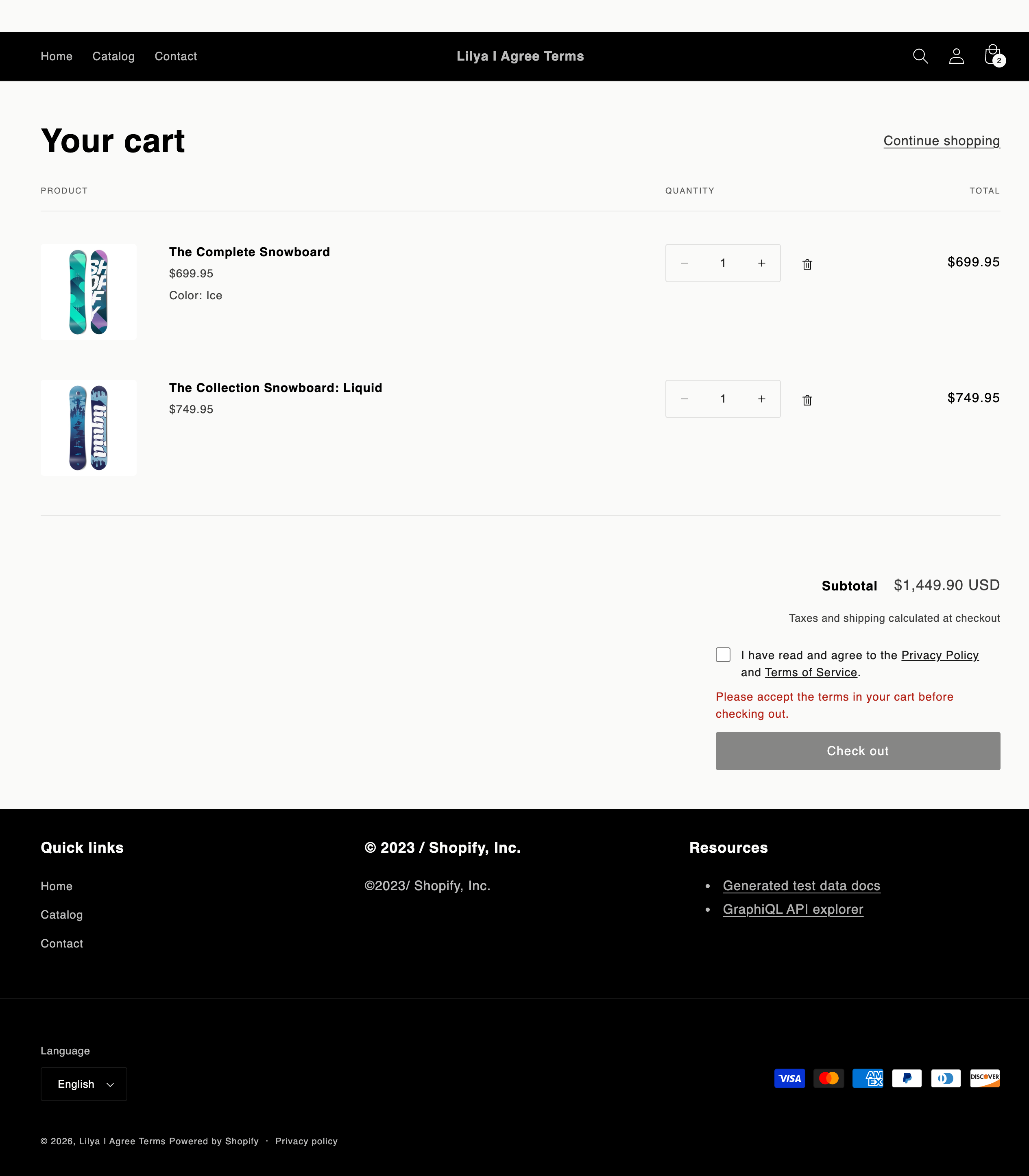
You can test the checkout rule separately by opening your store's /checkout URL with a fresh cart and no consent. Shopify should show your configured error and stop checkout. Storefront and checkout explains why both the checkbox and rule matter.
Watch the setup walkthrough
This 5-minute demo uses development stores and includes a test order. Its sample text and store details will differ from yours.
The video has English captions on screen and no audio. It covers setup, the cart page and drawer, checkout blocking, order details, and consent records.