
Appearance
Storefront and checkout
The theme app embed shows the checkbox on the cart page and in the cart drawer, directly above the checkout button. The button stays disabled until the customer ticks the box and consent is saved to the cart. If saving fails, the customer sees an error and can try again.
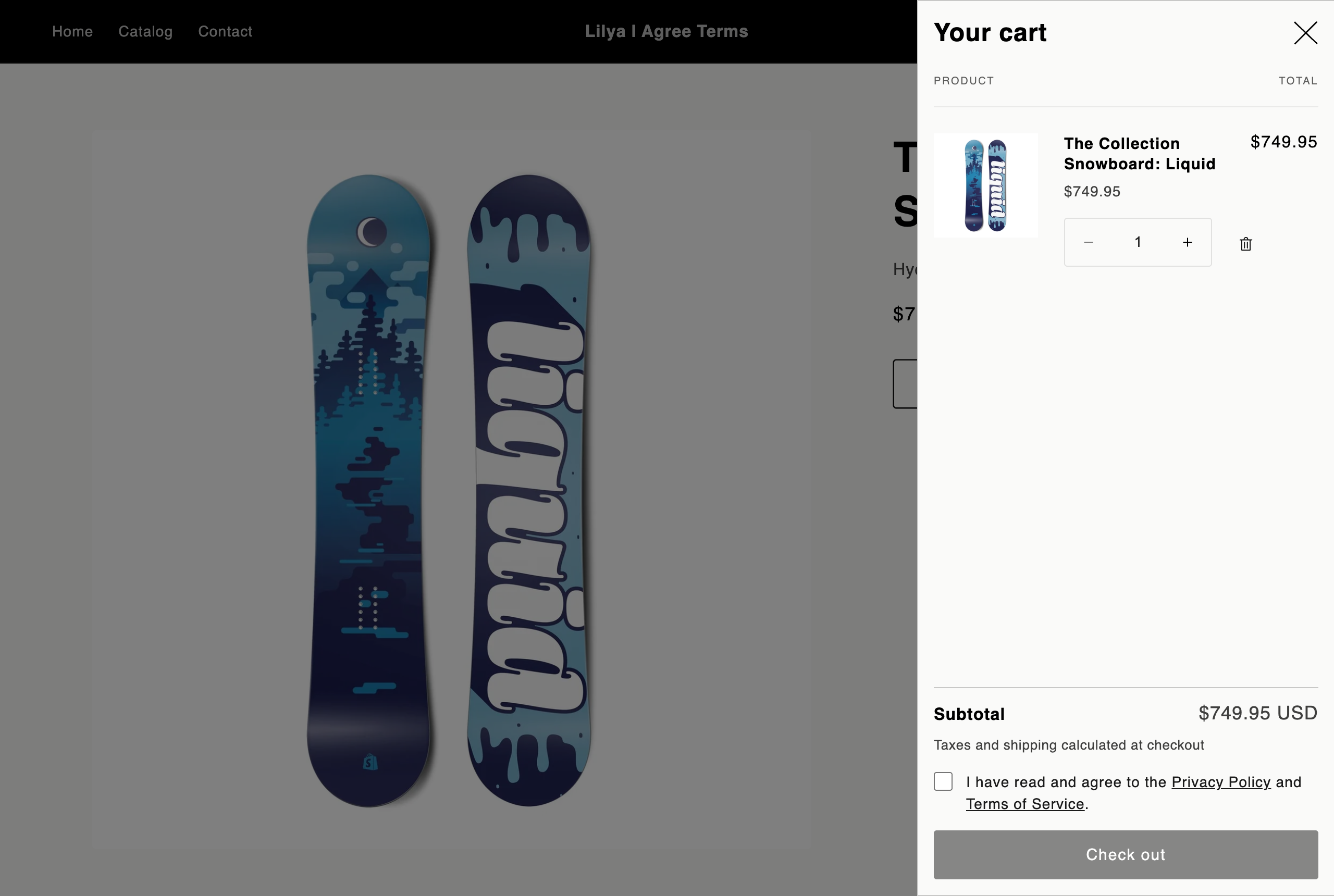
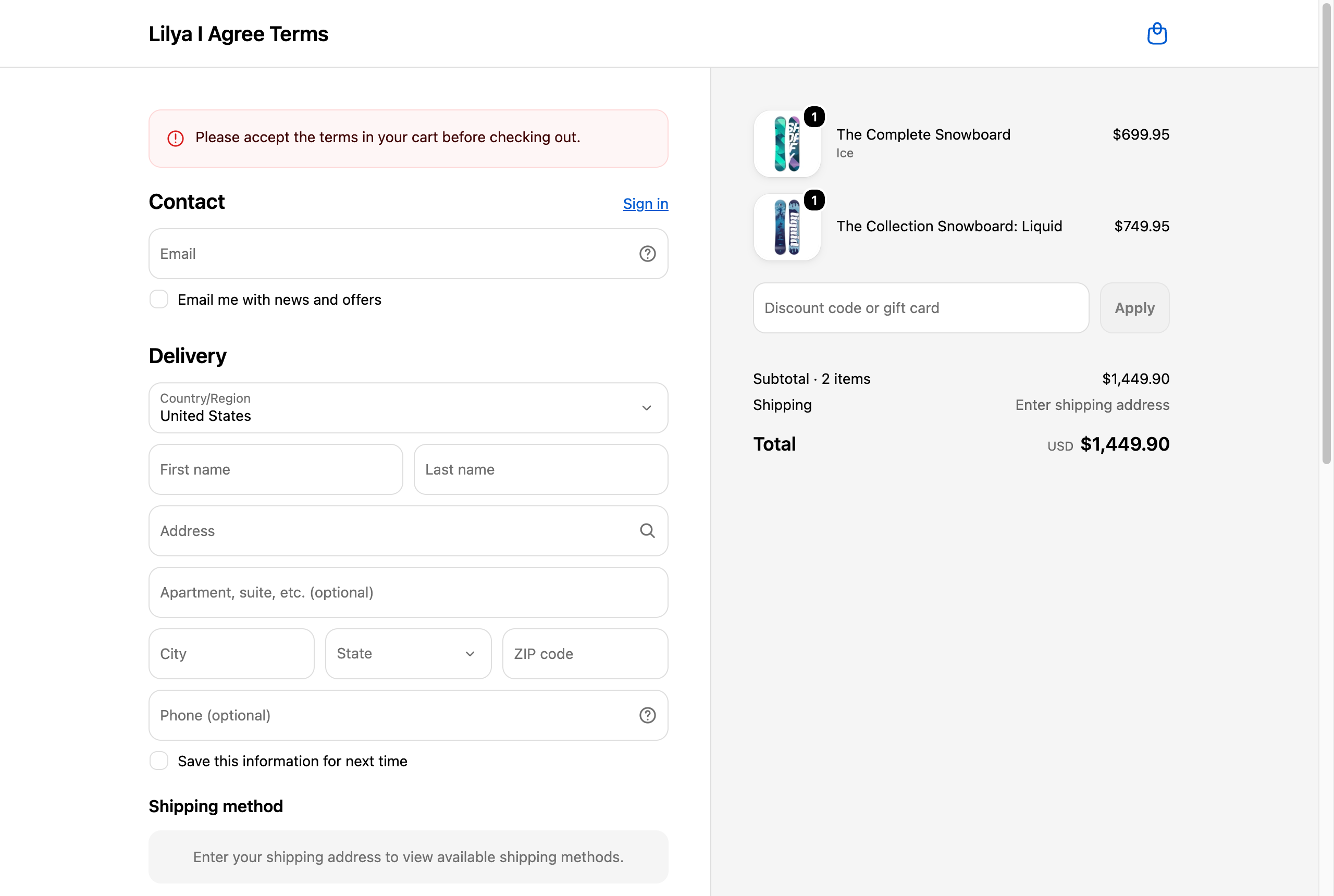
The separate checkout rule checks whether the cart carries consent for your current published terms. It blocks checkout without that consent, even when a customer uses a direct checkout URL or an express checkout button that bypasses the cart UI. The customer sees your error message and needs to return to the cart.
Place the checkbox
From Home, select Turn on in the theme editor, enable the Terms checkbox (cart drawer) app embed, and save the theme. This is the standard placement for both cart surfaces. If you want a different position on the cart page, go to Settings → Theme and troubleshooting → Add in the theme editor and place the Terms checkbox app block in the cart template.
The checkbox requires an Online Store 2.0 theme. On an older Liquid cart template, the theme checkbox cannot appear, although the checkout rule can still block missing consent. For other theme issues, see Troubleshooting.
What customers and merchants see
When a customer accepts, the app saves consent attributes on the cart. Shopify copies them to the order's Additional details, including consent_accepted: yes, consent version, source, and optional time and record ID. Unticking clears the consent attributes. See Consent records for the optional server record.
The checkbox is on the cart, not inside Shopify checkout. The checkout rule is the enforcement point after the cart. Read Where consent works for channel and checkout method limits.