
Appearance
Terms & Checkbox
Lilya: Terms & Checkbox shows your terms on the cart page and in the cart drawer. Customers accept them before checkout. A Shopify checkout rule also stops checkouts without consent to the current version of your text, including direct and express checkout attempts.
The checkbox sits above the cart checkout button. You can edit its sentence, policy links, languages, appearance, and error message. Consent details are saved with the order; optional enhanced record keeping adds a searchable server record.
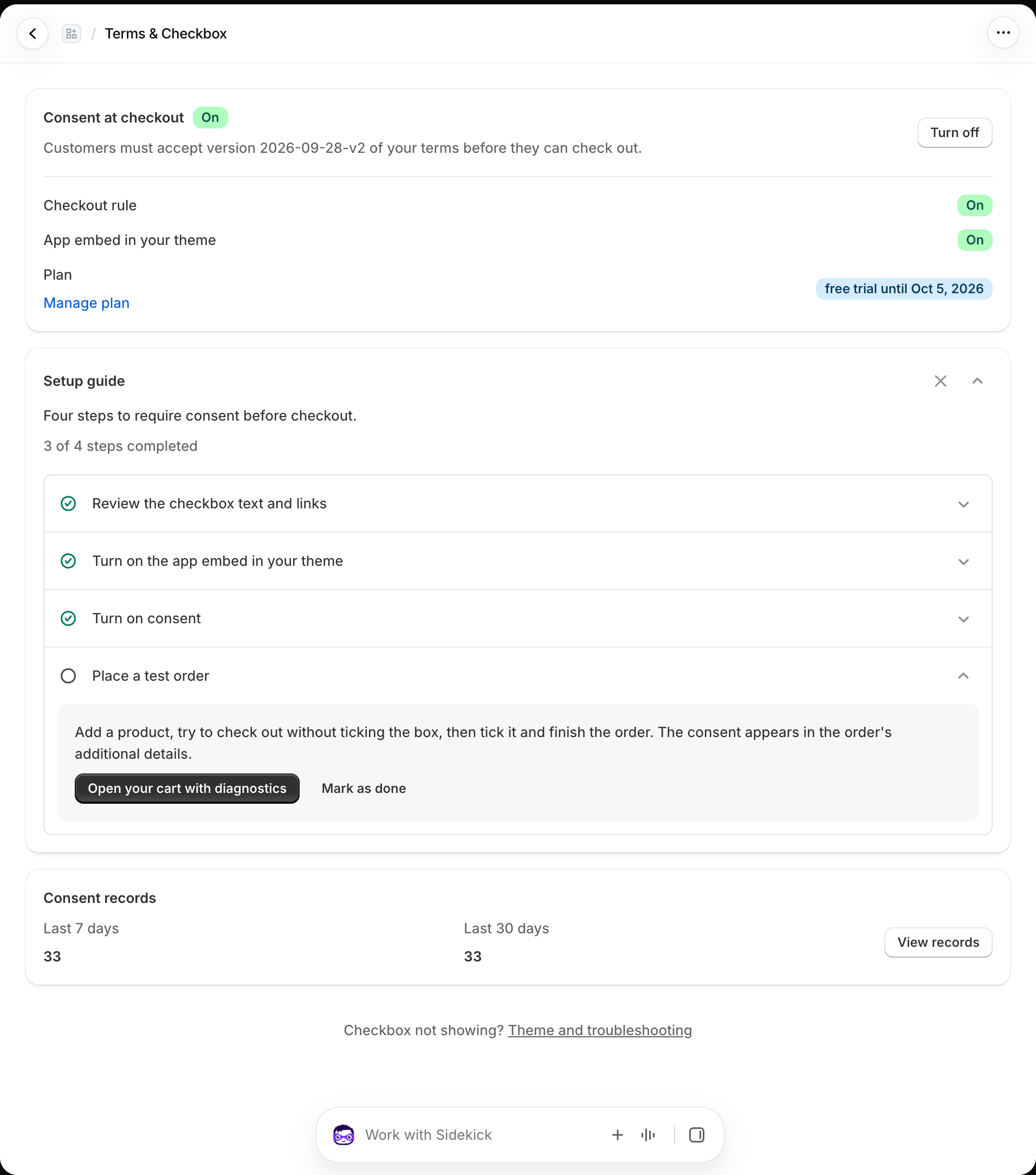
Where to find things
Open Shopify admin → Apps → Lilya: Terms & Checkbox.
| Page | Use it for |
|---|---|
| Home | Follow the setup guide, turn consent on or off, and check the theme embed and checkout rule. |
| Checkbox | Edit the sentence, policy links, translations, error text, and appearance. |
| Settings | Choose where the checkbox appears, how express buttons behave, and how consent is recorded. |
| Consent records | Find and export records when enhanced record keeping is enabled. |
Start with the quick start. For coverage across checkout methods and sales channels, read Where consent works.