
Policy PDFs in the order email
Shopify can attach your store policies to the order confirmation email as PDF files. Customers then keep a durable copy of the terms they accepted, as EU consumer rules expect. The Email PDFs page in the app writes the few lines of code that do this; you paste them into the email template once.
- Shopify creates and sends the PDFs. The app sends no email, reads no order and stores no customer data.
- The PDF contains your policy text as it is when the order is placed. Order details (items, prices, addresses) stay in the email itself, not in the PDF.
- The name you give a policy becomes the file name and the heading of the PDF.
The video (about 2½ minutes, captions on screen, no audio) shows every step below on a development store.
Before you start
Each policy you want to attach needs text in Shopify admin → Settings → Policies. A policy with no text is skipped: the email still goes out, without that file. Email PDFs → Open Policies opens that page.
Set it up
- In the app, open Email PDFs.
- Under Choose the policies to attach, tick the policies you want. Terms of service and Return and refund policy are ticked by default. Next to each, check the file name, for example Terms and Conditions and Refund Policy and Right of Withdrawal. If your store sells in more than one language, see Stores in more than one language below.
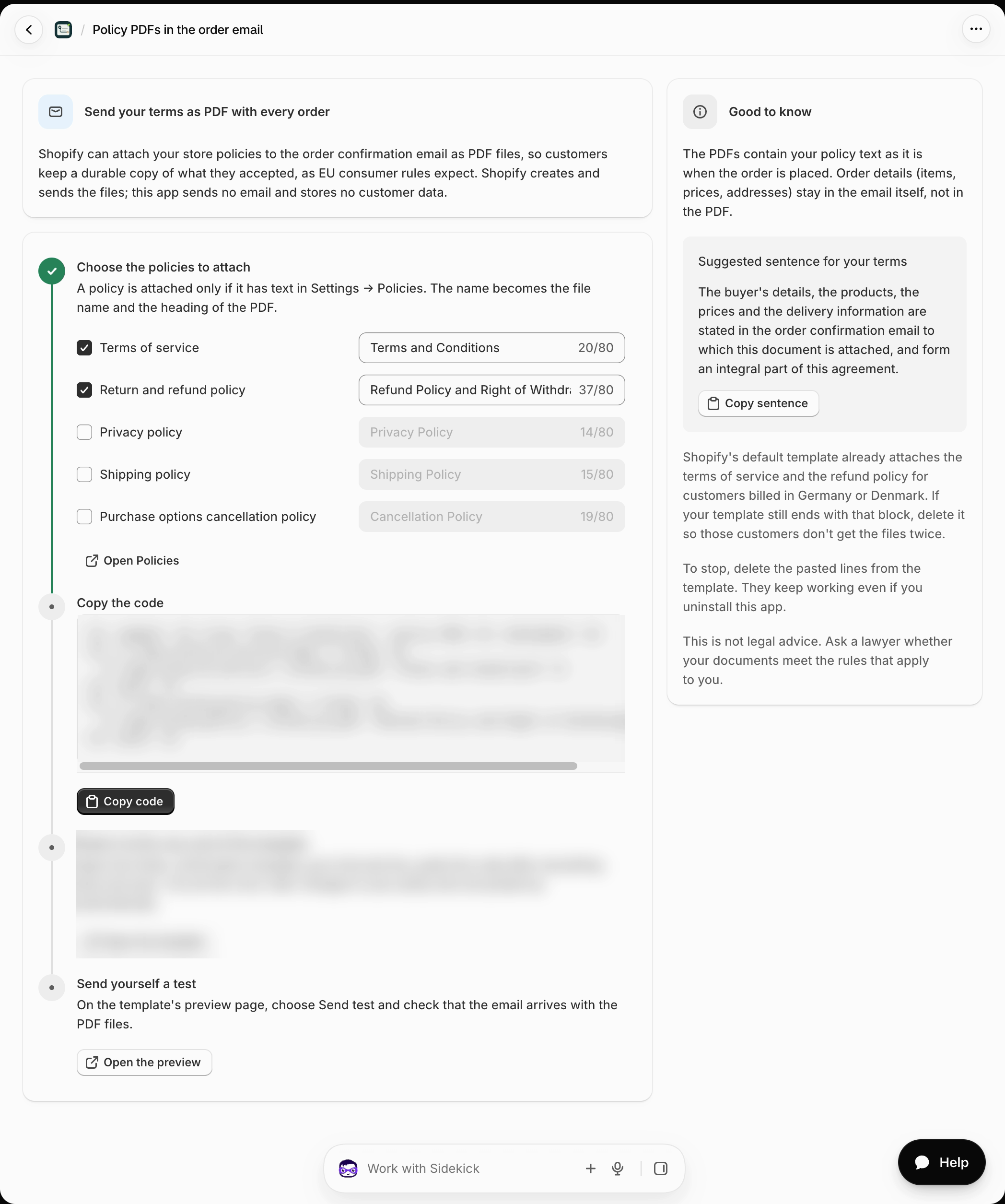
- Under Copy the code, select Copy code. A toast confirms Code copied.
- Under Paste it at the very end of the template, select Open the template. It opens Settings → Notifications → Customer notifications → Order confirmation → Edit code in a new tab.
- Click in the code editor and go to the very last line, below
</html>and everything else in the template. On a Mac press ⌘+↓, on Windows Ctrl+End. Start a new line and paste (⌘+V / Ctrl+V).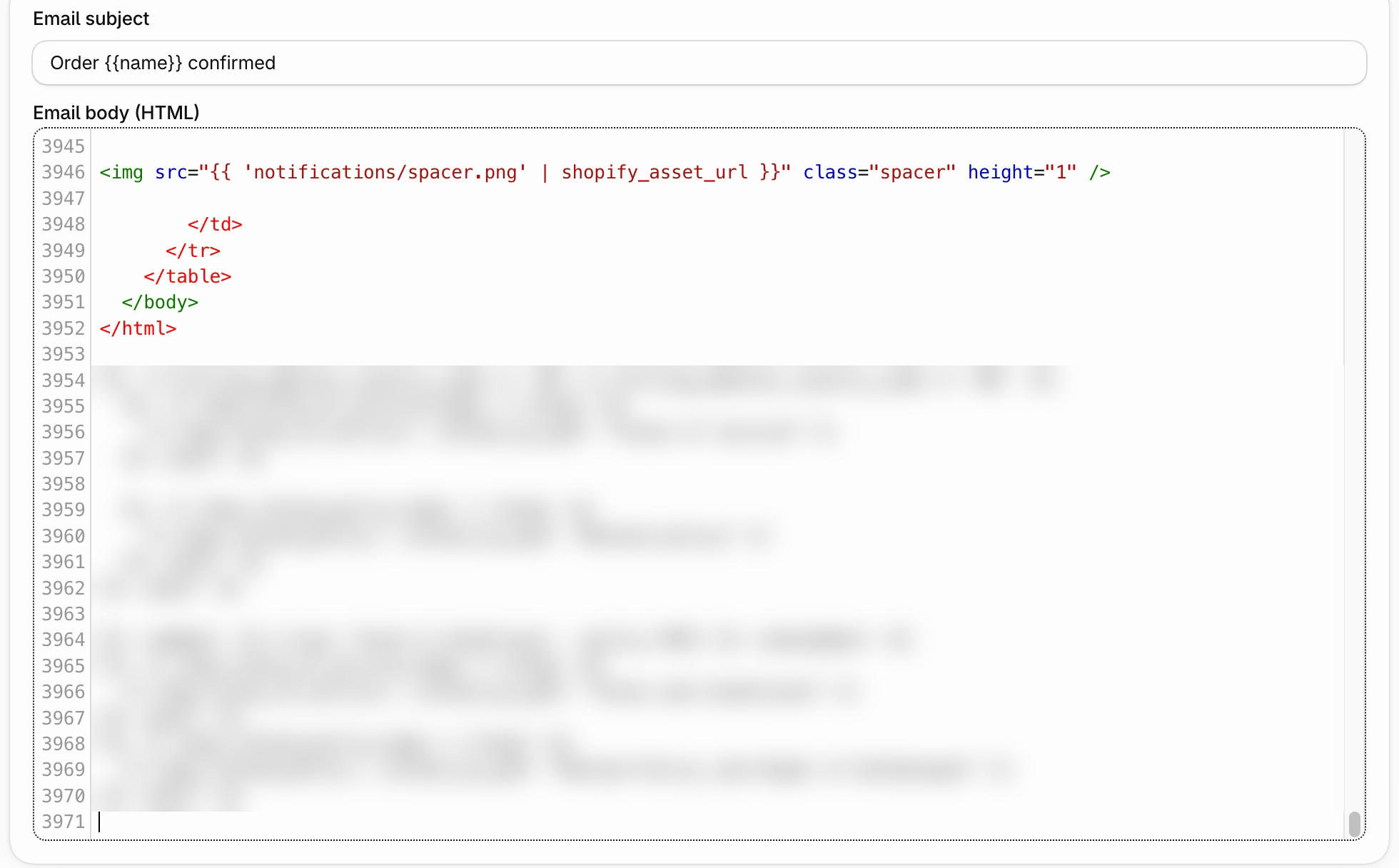
- Select Save.
- Send yourself a test: on the same page select Preview, then Send test email. The test goes straight to the store's email address. You can also use Send test on the Order confirmation page, which Send yourself a test → Open the preview in the app opens.
- Open the email. It should have one PDF per policy you picked, named as you chose.
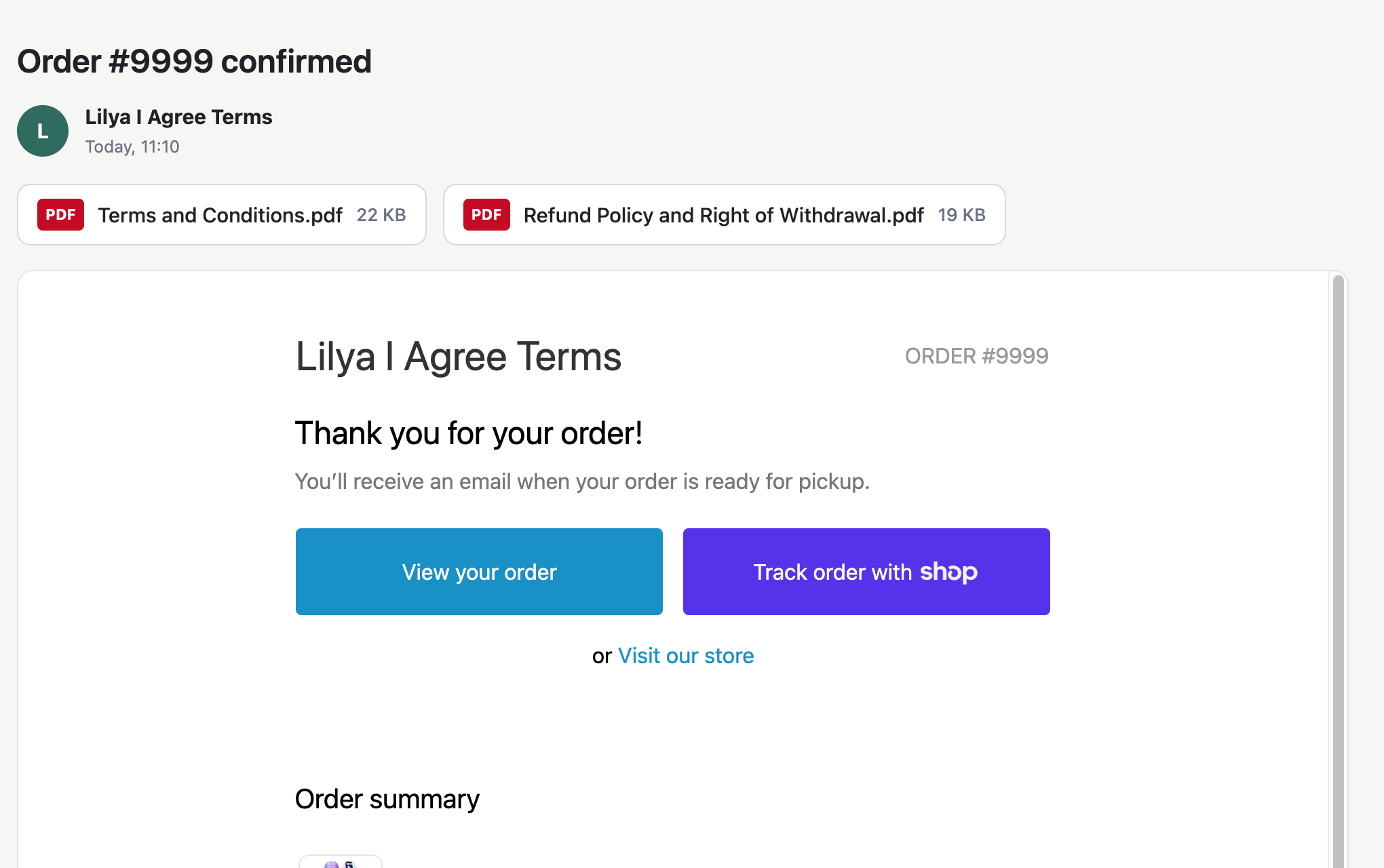
You do this once. When you later change a policy in Settings → Policies, new emails pick up the new text automatically. If you change the file names in the app, copy the code again and replace the old lines.
Stores in more than one language
Shopify emails each customer in the language they shopped in, and it keeps a separate Order confirmation template for every language your store sells in, even if you never edited it. The lines you pasted above only reach customers who buy in your store's default language. Customers buying in another language get an email without the PDFs until you paste the code into that language's template too.
For each additional language:
- In the app, under Choose the policies to attach, set Language of the file names to that language. The file names switch to that language (for example AGB and Widerrufsbelehrung for German); change them if you like.
- Select Copy code.
- Open the Order confirmation template (Repeat for each language your store sells in → Open the template) and select Translate.
- Pick the language, go to the very end of the email body, paste the code and save.
- Send a test in that language from Preview.
The PDFs then contain your policy translation for that language (translate policies in Translate & Adapt). The file names are the ones you set for that language.
Customers billed in Germany or Denmark
Shopify's default Order confirmation template already ends with a block that attaches the terms of service and the refund policy for customers whose billing address is in Germany or Denmark. If your template still has that block, delete it, so those customers don't get the files twice. It starts with {%- if billing_address.country_code == 'DE' or billing_address.country_code == 'DK' -%}; delete everything from that line to its closing {%- endif -%}.
Suggested sentence for your terms
The PDF contains only your policy text. To tie it to the order, you can add this sentence to your terms (Email PDFs → Copy sentence):
The buyer's details, the products, the prices and the delivery information are stated in the order confirmation email to which this document is attached, and form an integral part of this agreement.
Stop sending the PDFs
Open the Order confirmation template again, delete the pasted lines (they start with Lilya: Terms & Conditions - policy PDFs) and save. The lines are plain Shopify code: they keep working even if you uninstall the app, until you delete them.
Troubleshooting
| What you see | What to check |
|---|---|
| The email has no attachment | The policy has no text in Settings → Policies; or the code was pasted inside another block instead of on the last line; select Save and send a new test. |
| Only some files are attached | Each policy is attached only if it has text. Check the empty one in Settings → Policies. |
| The files arrive twice for German or Danish customers | Delete Shopify's default Germany/Denmark block, see above. |
| The email in another language has no attachment | Each store language has its own Order confirmation template. Paste the code into that language too, see Stores in more than one language. |
| A translation or email app manages your notifications | Apps that replace Shopify's templates may not include your edit. Paste the code into the template that app uses, or ask its support. |
| You can't see the attachments | Some email apps hide attachments in the preview. Open the email itself, also on your phone. |
Still stuck? Contact support.
Not legal advice
This page explains how the feature works. Ask a lawyer whether your documents meet the rules that apply to you.