
Statements
A statement lists a customer's open orders with their dates, due dates, PO numbers, and outstanding amounts, the aging, and the total due.
Print a statement
On a customer's account page, select Print statement. The statement opens in a new tab, ready to print or save as PDF from the browser. The link is short-lived; if it says it has expired, go back to the app, reload the page, and open it again.
Email a statement
On the account page, select Email statement. The dialog shows the customer's email address; select Send email. "Statement emailed" confirms it. Emailing a statement by hand works on every plan, including Free.
The email comes from notify@lilya.work with the sender name "Lilya House Accounts – <your store name>", and customer replies go to your store's contact email. It contains your store name, the open orders, the aging, the total due, and how to pay. It has no tracking and no marketing.
If the customer has no email address in Shopify, add one to the customer in Shopify admin first.
Automatic statements (Pro)
Open Settings in the app menu and go to Customer notifications › Statement emails.
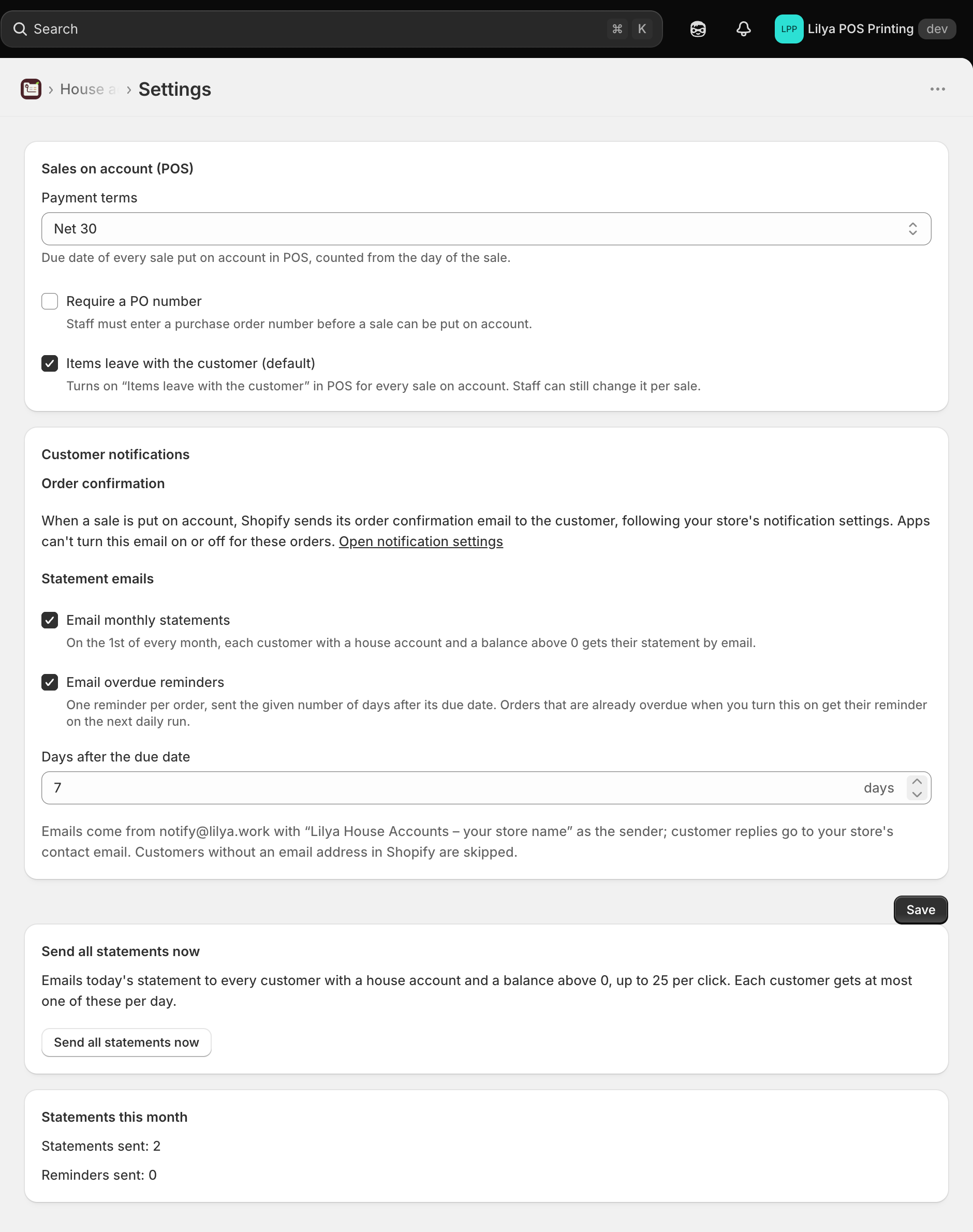
| Setting | What it does |
|---|---|
| Email monthly statements | On the 1st of every month (UTC), each customer with a house account and a balance above 0 gets their statement by email. |
| Email overdue reminders | One reminder per order, sent the chosen number of Days after the due date (1–90, 7 by default). Orders that are already overdue when you turn this on get their reminder on the next daily run. |
| Send all statements now | Emails today's statement to every customer with a house account and a balance above 0, up to 25 per click. Each customer gets at most one of these per day; click again to continue. |
Select Save after changing the settings. Customers without an email address in Shopify are skipped. Statements this month shows how many statements and reminders were sent and how many failed.
On the Free plan these controls are disabled and name the Pro plan. See Plans.