
Sell on account in POS
Staff sell on account with the Charge to account tile on the POS home screen. If the tile is missing, add it first.
The tile
The tile always shows Charge to account. The line under it tells staff what to do next:
| Tile shows | Meaning |
|---|---|
| Add a customer | The cart has no customer. Add the customer to the cart. |
| Add items to the cart | The cart is empty. |
| Checking account… | The app is loading the customer's account. |
| $500.00 available | The customer has a house account with this much available credit. Tap the tile. |
| No house account | The customer has no credit limit. Set one in the app in Shopify admin. |
| Account on hold | The account is on hold in the app, so new sales on account are refused. The balance can still be paid. |
| Over limit · $0.00 available | The balance has reached or passed the credit limit. |
| Offline | POS has no internet connection. Selling on account needs a connection. |
The tile can only be tapped when the cart has a customer and items and POS is online.
The Charge to account screen
The screen has two sections:
- Account: the customer, Balance, Status: On hold if the account is on hold, Credit limit, Available, and Overdue if any order is past its due date.
- This sale: the number of items and the cart total, Payment terms, PO number (optional), and Items leave with the customer.
Payment terms shows the terms the sale will get, for example Net 30 from Settings, or Net 15 (this customer) when the customer's account has its own payment terms.
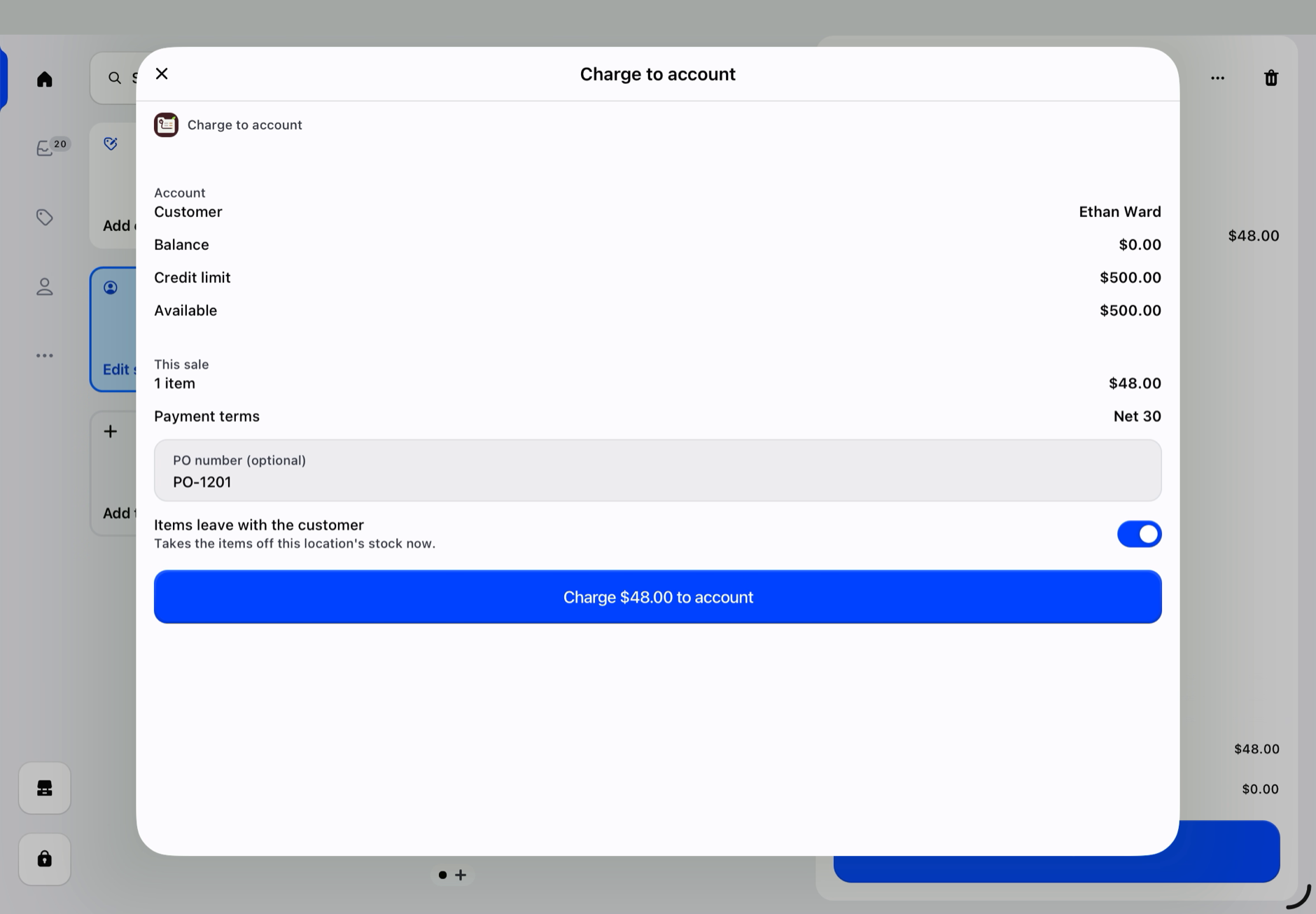
PO number (optional) is saved on the Shopify order and printed on the receipt and statements. Use it for the customer's purchase order or job number. If Require a PO number is on in Settings, the field reads PO number (required).
Items leave with the customer is on by default (you can change the default in Settings). It marks the order as fulfilled and takes the items off this location's stock now, as a normal POS sale does. Turn it off if the items are collected or delivered later; then fulfil the order in Orders when they leave.
Tap Charge $… to account. The app checks the credit limit again on its server, creates the order in Shopify with the payment terms shown (Net 30 by default), the PO number, and the tag house-account, and clears the cart.
After the sale
The success screen shows the order number and a toast such as "#1012 charged to account".
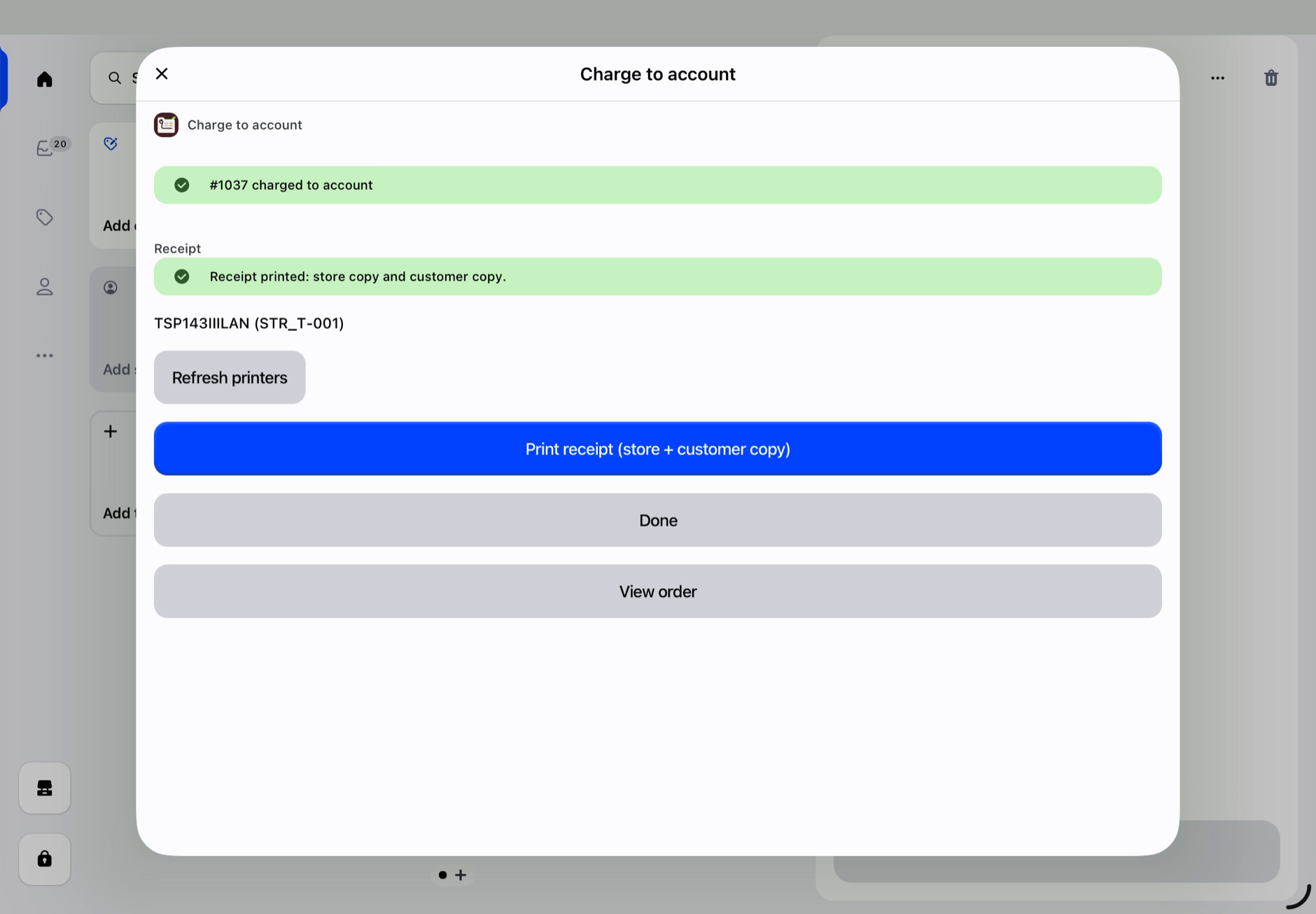
- Print receipt (store + customer copy) prints two receipts, one after the other: a STORE COPY with lines for the customer's signature and printed name, and a CUSTOMER COPY. Both show the items, the total charged, the due date, the account balance, available credit, and the line "I agree to pay the above amount according to the account terms." Keep the signed store copy.
- View order opens the order in POS.
- Done closes the screen.
Receipts print on the receipt printer paired in POS (Settings › Hardware). If none is connected, tap Print via system dialog. If a printer drops out, tap Refresh printers and print again.
When a sale is refused
The app never creates an order when it refuses a sale. The reason shows in a banner on the screen:
| Message | What to do |
|---|---|
| "This account is on hold. New charges are refused; the balance can still be paid." | Shown as soon as the screen opens, and the Charge button is disabled. A manager can select Make active on the account page, or take a payment instead. |
| "This account is on hold. Ask the store manager, or take a payment instead." | The account was put on hold while the screen was open. Same as above. |
| "This sale is more than the available credit. Remove items or take a payment first." | Shown as soon as the screen opens, and the Charge button is disabled. Take a payment for part of the sale, remove items, or raise the limit in the app. |
| "Over the credit limit. Available: $…" | The limit was reached in the meantime, for example by a sale on another till. Same as above. |
| "This customer has no house account. Set a credit limit in the Lilya app in Shopify admin." | Set a credit limit. |
| "Another till is charging this customer. Try again in a moment." | Two tills sold to the same customer at the same moment. The app handles one sale at a time per customer, so the limit can't be passed twice. Try again after a few seconds. |
| "POS is offline. Charging to account needs a connection." | Reconnect POS to the internet. |
| "The app needs to reconnect to this store. Open Lilya: House Accounts for POS once in Shopify admin, then try again." | Open the app in Shopify admin once, then try again in POS. |
| "This POS login needs access to the app…" | See Staff permissions. |
| "Some items can't be charged to an account." | Gift cards must be paid in full; subscriptions and bundles can't be sold on account. Sell them separately. |
| "Shopify calculated $… but the cart shows $… (taxes or discounts differ). Nothing was charged." | Check the cart's taxes and discounts and try again. |
| "The result is unknown. Check Orders before charging again." | Look for the order in Orders before you try again, so the sale isn't created twice. |
Sales closed as unpaid in POS
Sales you close in POS with Shopify's own Mark unpaid or Mark as partially paid also count toward the customer's house account balance. They are not checked against the credit limit, because they don't go through the tile. The Charge to account screen tells staff when a customer has such orders, for example "1 open order was closed as unpaid outside the charge tile."