
Accounts and aging
Home
Open Shopify admin → Apps → Lilya: House Accounts for POS. The home page shows:
- Setup guide until setup is done: open the first account, add the Charge to account tile in POS, and make the first sale on account.
- Open balances: Total balance (and how many accounts have one), Overdue (and how many accounts), and the aging buckets 0–30 days, 31–60 days, 61–90 days, and Over 90 days.
- Needs attention: up to 5 accounts, most overdue first, then accounts over their limit and accounts on hold (marked On hold). View all overdue accounts, Over or near limit, and On hold open the Accounts page with that filter.
- Open an account: give a customer a credit limit.
- Plan.
View all accounts at the top opens the Accounts page.
Accounts page
Select Accounts in the app menu. The table lists every house account, including customers with a credit limit and no balance yet ($0.00 rows), 25 per page.
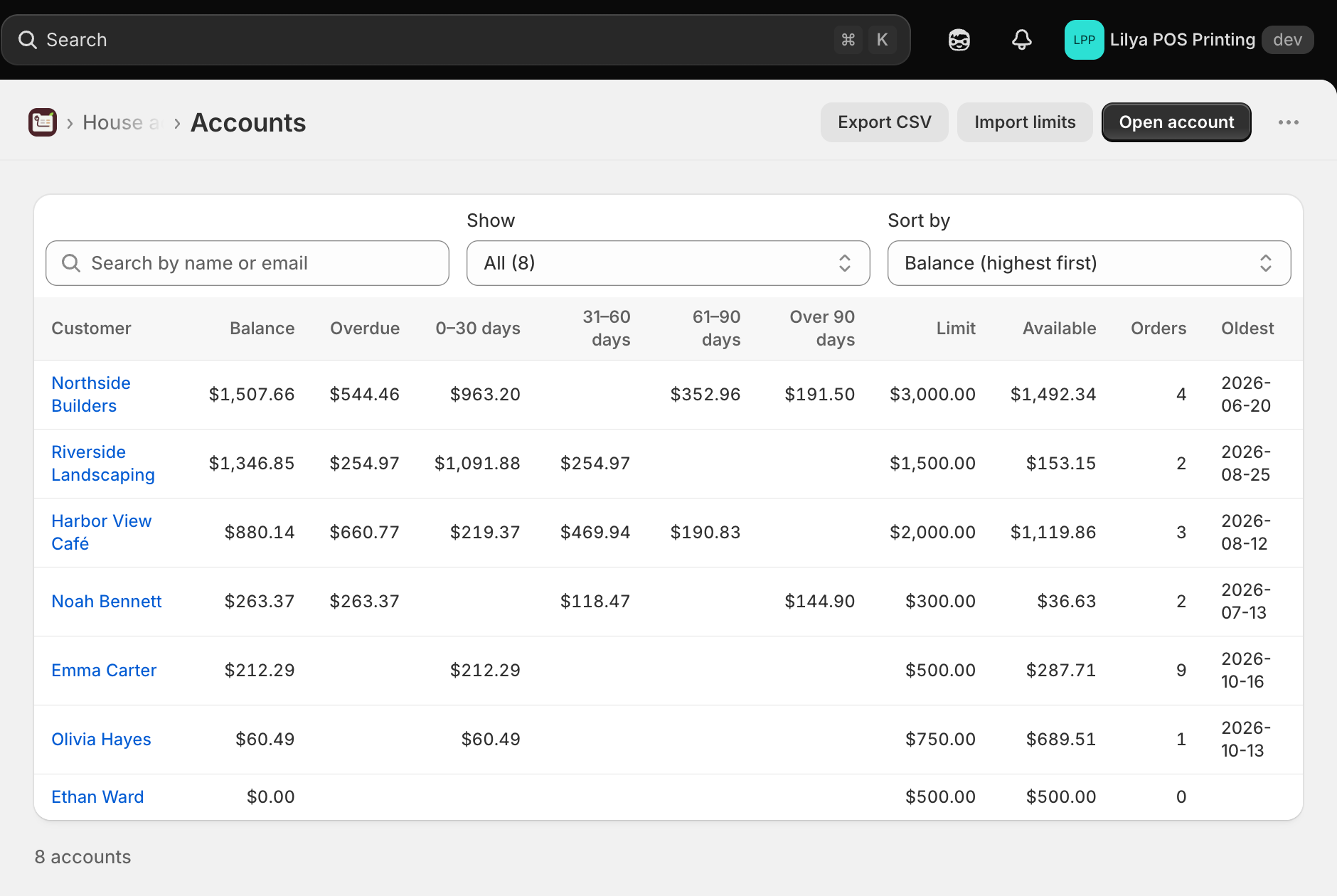
| Column | Meaning |
|---|---|
| Customer | Opens the account page. Accounts on hold show an On hold badge next to the name. |
| Balance | The total the customer still owes on open orders. |
| Overdue | The part that is past its due date. |
| 0–30 days, 31–60 days, 61–90 days, Over 90 days | Open amounts by order date. |
| Limit and Available | The credit limit and what is left of it. Available is shown in red when the account is over its limit. |
| Orders and Oldest | How many orders are open and the date of the oldest. |
Above the table:
- Search by name or email.
- Show: All, Overdue, Over 90 days, Over or near limit (10% or less of the limit left), On hold, or No balance. Each choice shows how many accounts it matches.
- Sort by balance, overdue amount, oldest order, or name.
The search, filter, sort, and page stay in the page address, so you can bookmark a view or go back to it with the browser's back button. Export CSV, Import limits, and Open account are at the top of the page.
Aging is counted from the order date. Overdue is counted from the due date of each order, which follows the payment terms of the sale (Net 30 by default; see Payment terms).
Account page
Select a customer on the Accounts page or in Needs attention. The account page shows:
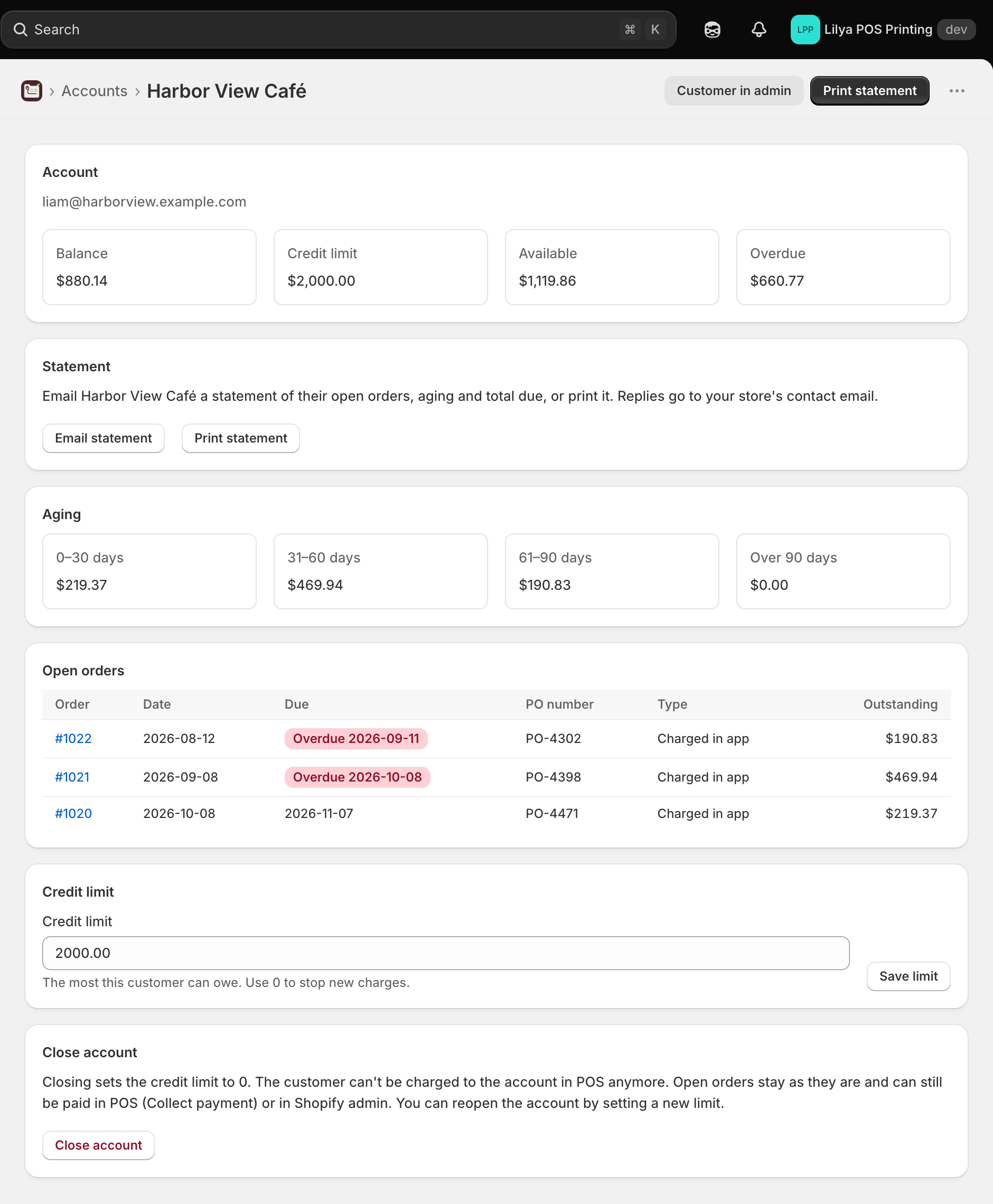
- Account: an Active or On hold badge, Balance, Credit limit, Available, Overdue, and Payment terms, for example "Net 15 (account)" or "Net 30 (store default)". A banner warns when the account is on hold or over its credit limit; in both cases new sales on account are refused.
- Statement: Email statement and Print statement. See Statements.
- Aging: the open amount in each bucket.
- Open orders: order, date, due date, PO number, type (Charged in app or POS unpaid / partial), and the outstanding amount. Overdue orders are marked in red.
- Status and payment terms: Put on hold or Make active, and the account's Payment terms. See Put an account on hold and Payment terms.
- Internal note: a note for staff. See Internal note.
- Credit limit: change the limit and select Save limit.
- Close account.
Set or change a credit limit
Use Open an account on the app home (or Open account on the Accounts page), the Credit limit section on an account page, or Import limits for many customers at once. The limit is the most a customer can owe, in your store currency. A limit of 0 keeps the account but stops new sales on account.
The limit is saved on the customer in your Shopify store, not on our servers.
Put an account on hold
Put an account on hold to stop new sales on account for a while, for example while an invoice is disputed, without changing the credit limit. On the account page, under Status and payment terms, select Put on hold and confirm.
While the account is on hold:
- In POS, the tile shows Account on hold, the Charge to account screen shows "This account is on hold. New charges are refused; the balance can still be paid.", and the Charge button is disabled. The POS customer screen shows Status: On hold. See Sell on account in POS.
- The credit limit, the balance, and the open orders stay as they are. Open orders can still be paid in POS (Collect payment) or in Shopify admin, and statements can still be sent.
- The account is marked On hold on the app home, on the Accounts page, and in the
statuscolumn of the CSV export.
To allow sales on account again, select Make active and confirm.
On the Free plan, an account on hold still counts toward the 3 house accounts, because it keeps its credit limit. To free the slot, close the account.
Payment terms
Sales on account use the payment terms from Settings (Net 30 by default). To give one customer different terms, choose them under Status and payment terms › Payment terms on the account page and select Save terms. The list shows Store default (Net …) and the net terms Shopify offers on your store, such as Net 7, Net 15, Net 30, Net 45, Net 60, or Net 90.
The account's terms set the due date of this customer's new sales on account, counted from the day of the sale. Orders already made keep their due date. In POS, the Charge to account screen shows the terms under This sale, for example Net 15 (this customer). Choose Store default to follow the Settings page again.
If the chosen terms are no longer offered by Shopify on your store, a warning on the account page asks you to pick other terms; until then sales on account to this customer are refused.
Internal note
Use Internal note on the account page to keep something for staff, for example who approved the limit or how the customer prefers to pay. Type up to 500 characters and select Save note. To remove the note, clear the text and save.
The note is shown only on the account page in the app. It isn't shown in POS, on statements, or on receipts, and it isn't in the CSV export.
Close an account
On the account page, select Close account and confirm. Closing sets the credit limit to 0, so the customer can't buy on account in POS anymore. Open orders stay as they are and can still be paid in POS (Collect payment) or in Shopify admin. To reopen the account, set a new limit.
On the Free plan, closing an account frees one of the 3 account slots.