
Appearance
Quick start
This walkthrough creates a price campaign without changing anything until you confirm the final apply action.
The screenshots use sample products and prices from a development store. Your catalog and currency will differ.
- In Shopify admin, open Apps → Lilya: Bulk Price & Revert → Create campaign.
- Under 1. Price change, select Put on sale and enter a discount. Choose a rounding rule if you need one.
- Under 2. Products, choose a collection, tag, vendor, product type, or specific products. Select at least one value.
- Leave Start later and End automatically off for a campaign you will start and end yourself.
- Select Preview changes. Review the product and variant counts, old and new prices, compare-at values, and any warnings. If you change the form after previewing, select Refresh preview.
- Enter a descriptive Campaign name. Select Apply campaign, then review and confirm the final dialog. The campaign starts in the background; its detail page shows progress.
- When the promotion ends, open Campaigns → your campaign → Revert prices, then confirm. Check the revert report after the job finishes.
Follow the screens
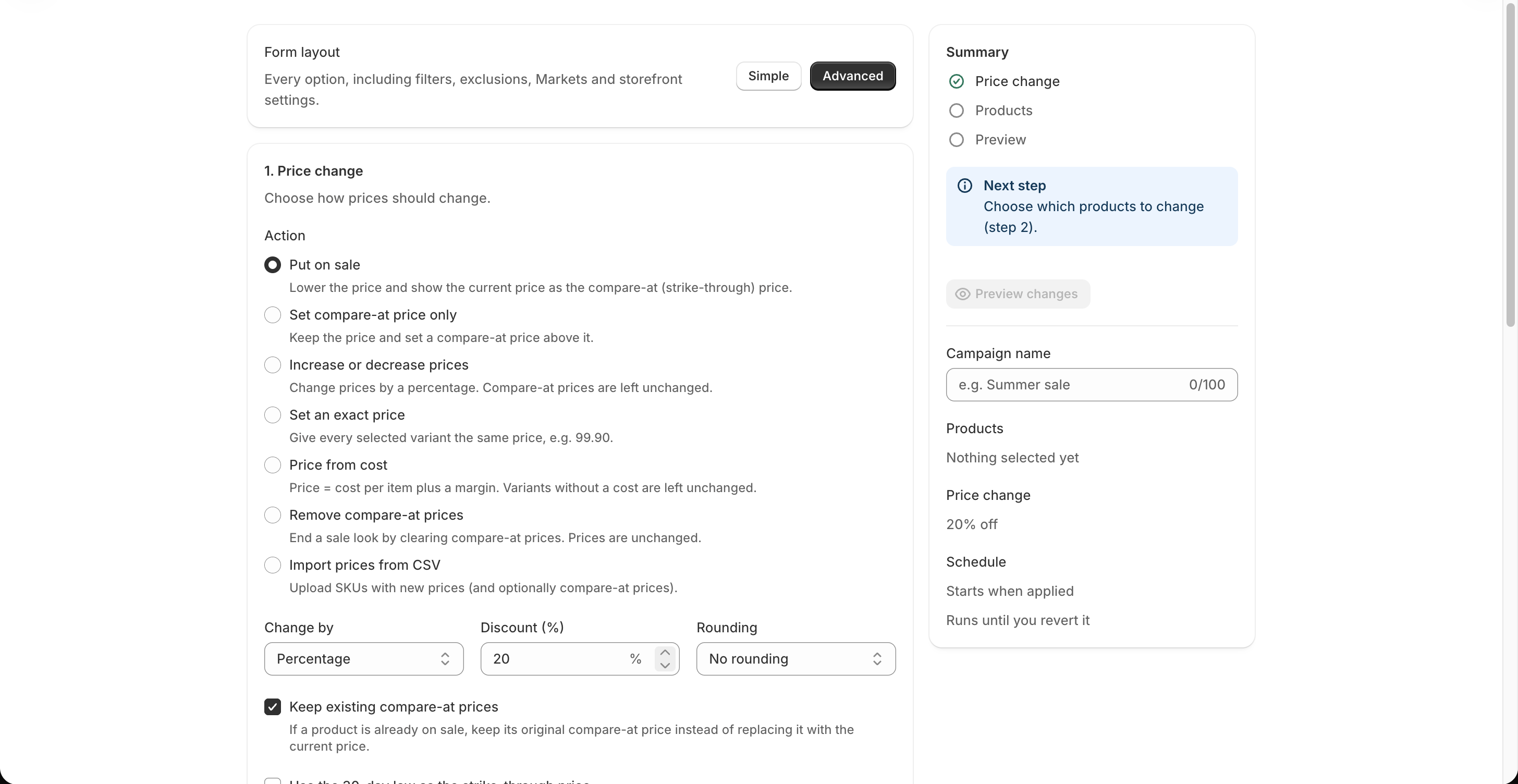
1. Set the price rule. The example uses Put on sale with a 20% discount. Check the action, value, rounding, and compare-at choices before moving on.
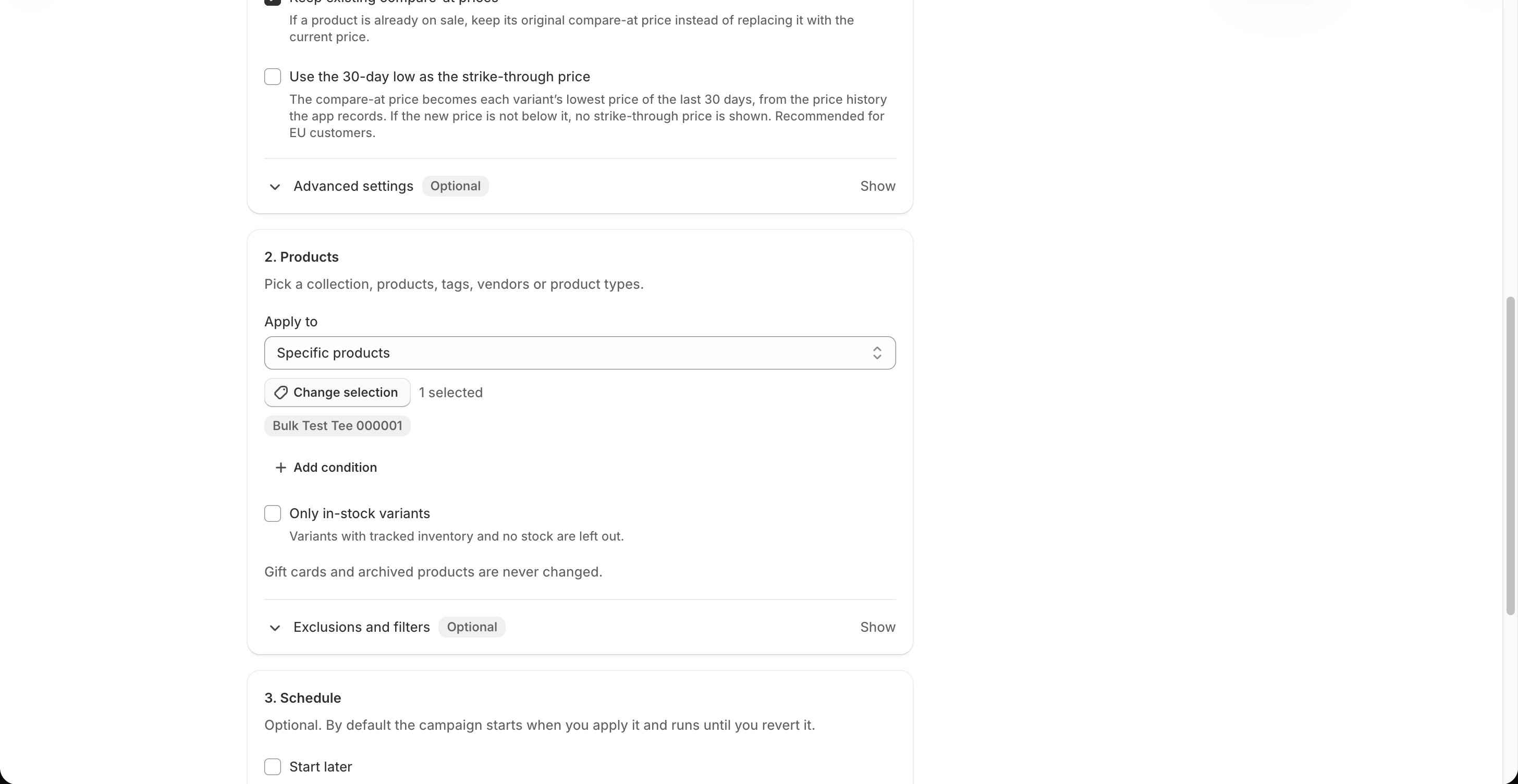
2. Select the products. Set Apply to, choose the collection or products, and review any extra conditions. This example targets one test product.
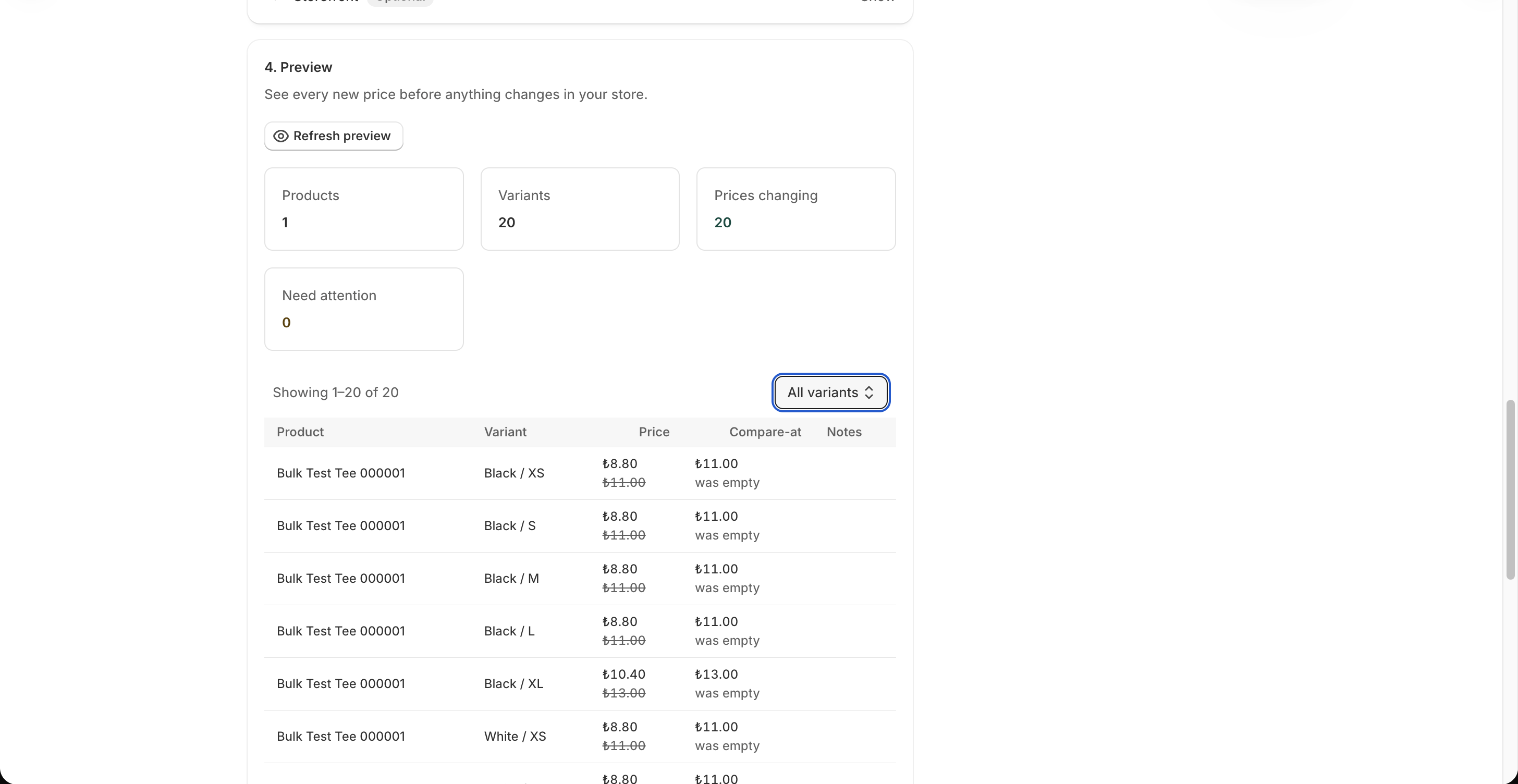
3. Preview every change. Check the product and variant counts, proposed prices, compare-at values, and Need attention count. This example changes 20 variants in one product; no price has been written yet.
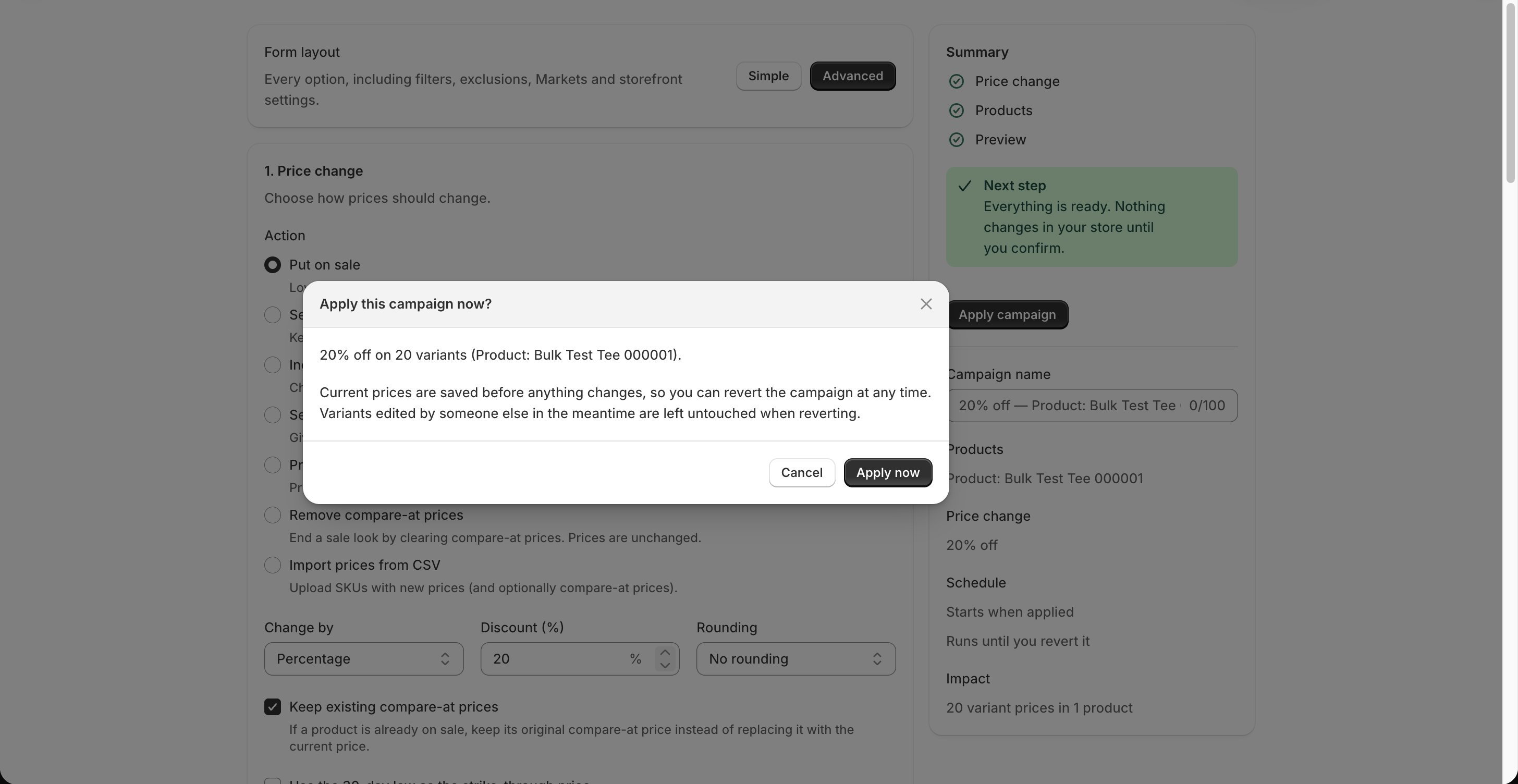
4. Confirm the apply action. The final dialog repeats the rule and affected variant count. Selecting Apply now starts the campaign; Cancel returns to the form without changing prices.
Before applying
Preview is the safest place to catch an unexpected product selection, zero price, missing compare-at display, Markets fixed price, or a variant held by another campaign. The app can apply to more variants than the preview displays on a very large catalog; follow the partial-preview warning before confirming.
Save as draft keeps a campaign for later. When you start a saved draft from its detail page, the app does not rerun the creation-page preview automatically; review the rule and target first. See Preview and apply for the complete checklist.