
Appearance
Campaigns and safe revert
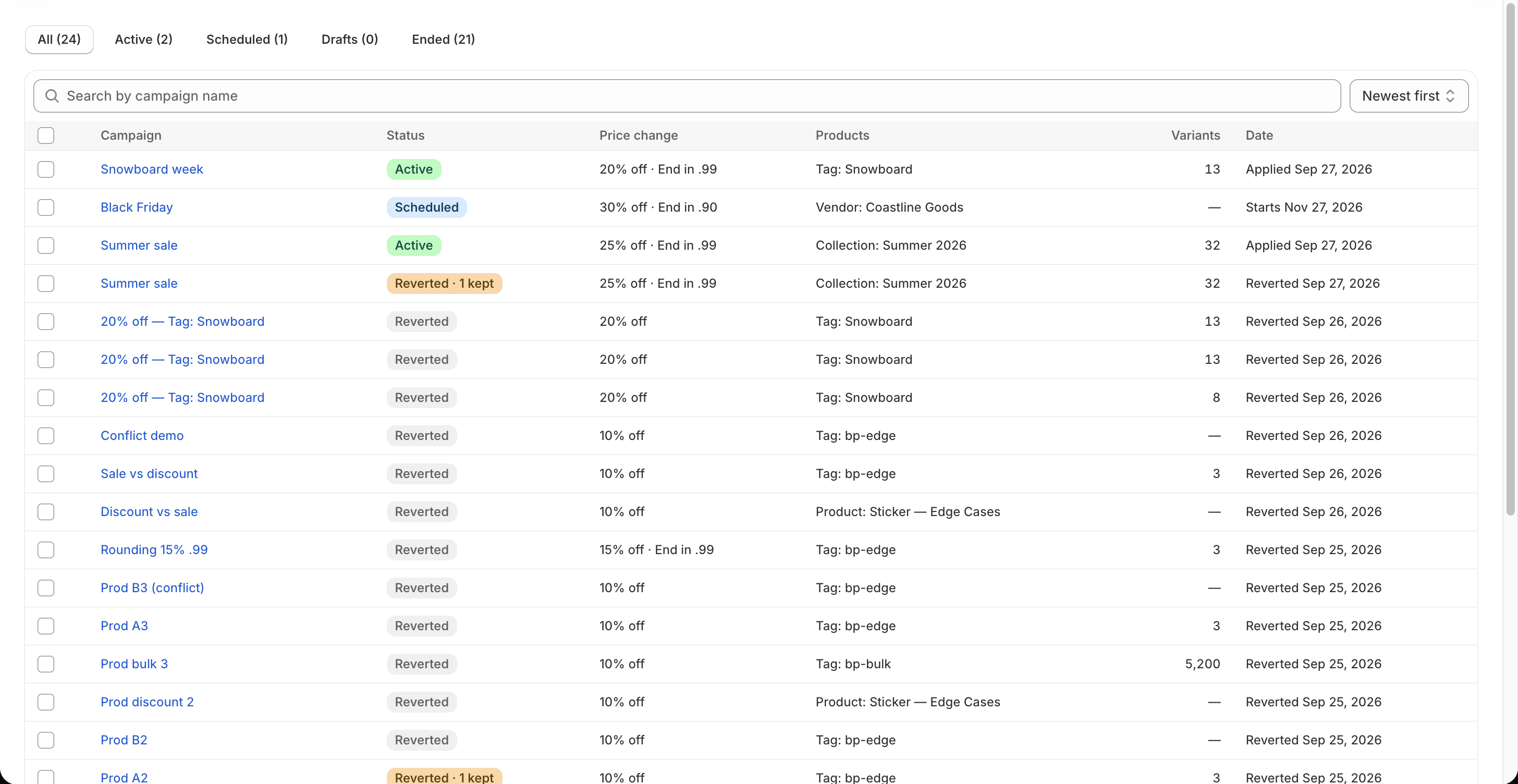
The Campaigns page lists saved work. Use the All, Active, Scheduled, Drafts, and Ended tabs, search by name, and sort by newest, oldest, or name. Each row shows status, price rule, target, variant count, and date. Select rows for available bulk start, revert, or delete actions; ineligible rows are skipped with a notice.
Open a campaign for its counters, variant table, rule, product target, storefront options, and timeline. The Show filter can narrow rows to changed, errors, skipped, edited, or unconfirmed variants. Campaigns with fixed-price changes can also show a Price lists view.
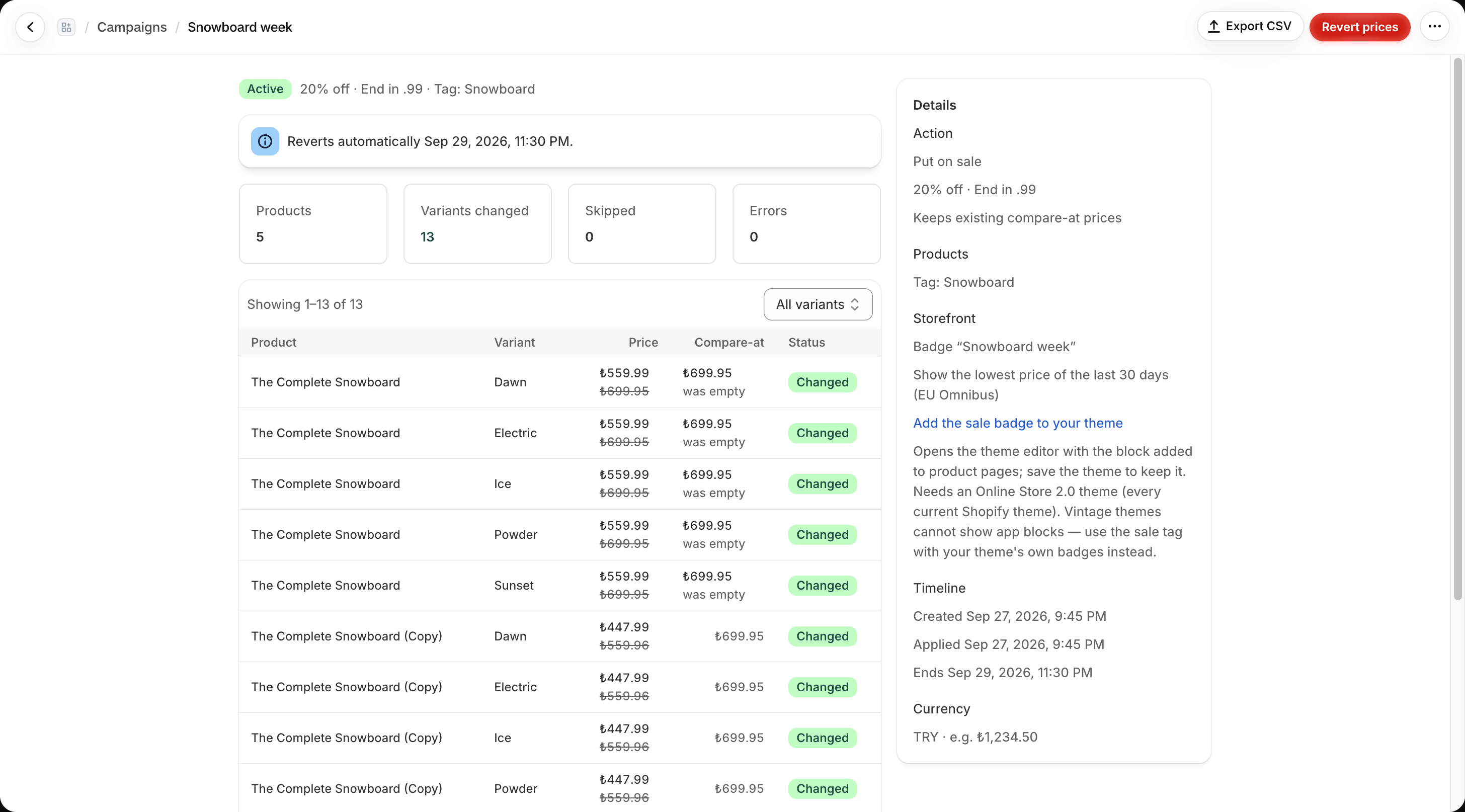
Safely restore prices
- Open Campaigns and select the active campaign.
- Select Revert prices and confirm the dialog. For a Shopify automatic discount, the action is End discount.
- Wait while the status is Reverting, then inspect the result and verification message.
The confirmation dialog explains that variants edited after the campaign are kept. Select Revert prices in this dialog only when you are ready to restore the campaign's original values.
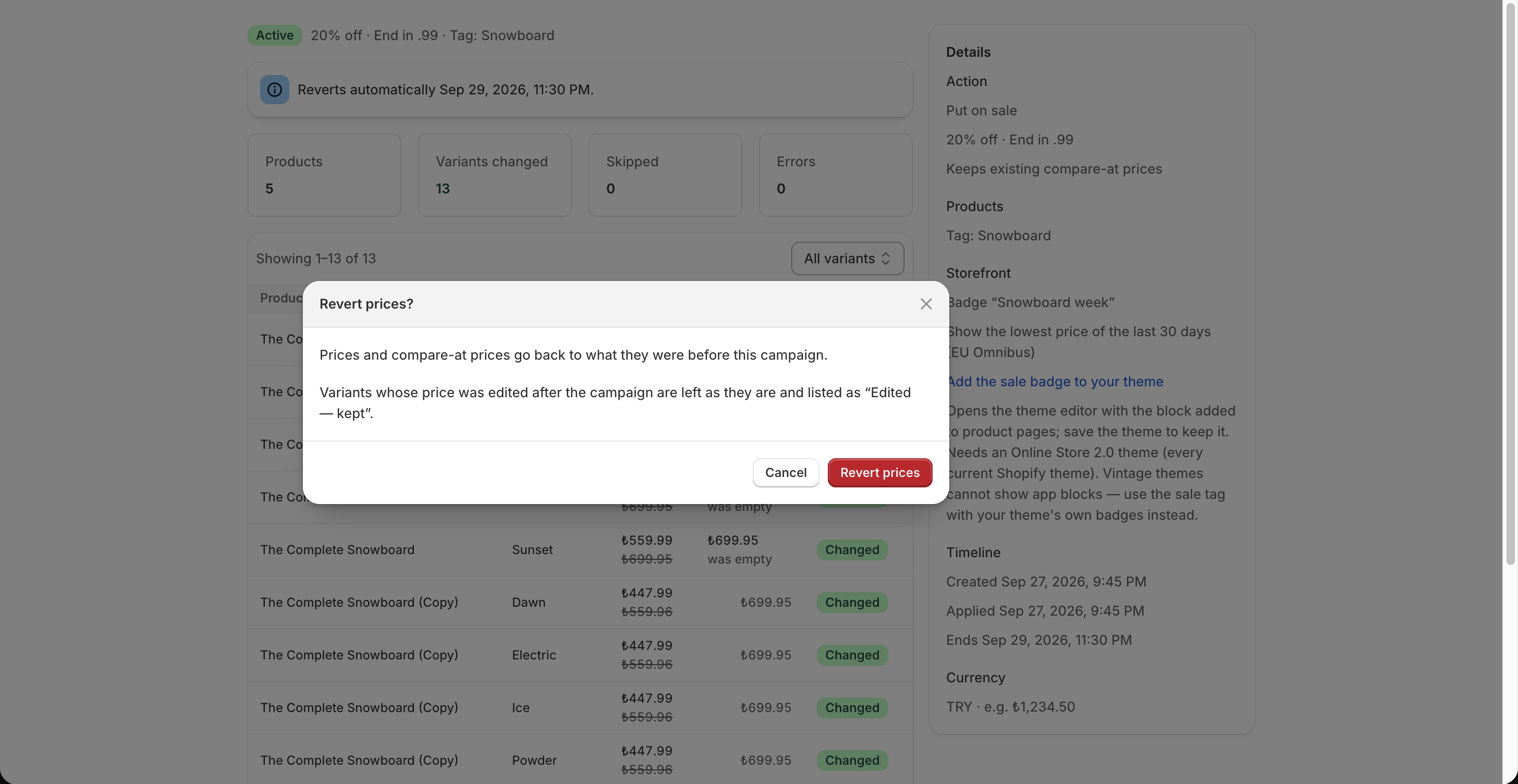
For each changed variant, the app compares the current Shopify values with what this campaign wrote. It restores the original values only when they still match. If a merchant or another app changed a price afterward, the app keeps that newer value and counts it as edited after campaign. A Reverted · N kept badge means the revert completed but preserved N later edits.
After restoring prices, the app reads them back from Shopify and shows how many reverted variants were confirmed at their original price. Use Not confirmed if any could not be verified. Product tags and theme data added by the campaign are removed when possible; the app removes only a sale tag that this campaign added.
Partial or failed runs
Open the detail page to see the error and row-level status. Retry can reprocess failed variants, variants skipped because another active campaign held them, and certain failed discount starts. Revert or end the conflicting campaign first. A retry of a previously skipped variant uses its current price as the new starting point.
A Partially applied campaign may have some prices or related storefront/Markets work in effect. A Failed campaign is not automatically reverted. Inspect the rows, then retry or revert as appropriate. If the page reports an operation that stopped making progress, use the available retry or revert action.
Export and history
Select Export CSV on the detail page to download a report of product and variant IDs, old and new price/compare-at values, apply status, revert status, and notes. CSV export is available on every plan once a campaign has changes to export.
On Free, reverted campaigns older than 30 days are hidden from the app's history; they are not deleted. Active or otherwise revertible campaigns remain visible. Paid plans retain the full visible history. Delete only when you no longer need the campaign record; a live campaign must be reverted before it can be removed.