
Appearance
Price rules
Under 1. Price change, choose one action. Values are in your store currency when you choose an amount or exact price. The preview shows the calculated result for each matching variant.
| Action | What it changes | Example |
|---|---|---|
| Put on sale | Lowers the variant price. Normally uses the previous price as compare-at, unless an existing valid compare-at is kept. | 100 with 20% off → price 80, compare-at 100. |
| Set compare-at price only | Leaves the selling price unchanged and sets a higher compare-at value. | Price 100, compare-at +20% → compare-at 120. |
| Increase or decrease prices | Changes the selling price and leaves compare-at unchanged. Use a negative value to lower it. | 100 with +10% → 110. |
| Set an exact price | Gives selected variants the entered price. A lower exact price can also create a compare-at sale display. | Set price to 89.90. |
| Price from cost | Calculates price as cost per item × (1 + margin%). Variants without a usable cost remain unchanged. | Cost 50, margin 40% → price 70. |
| Remove compare-at prices | Clears compare-at and leaves selling prices unchanged. | Price 80, compare-at 100 → price 80 with no compare-at. |
| Import prices from CSV | Uses SKU rows for exact prices and optional compare-at values. | See CSV import. |
The first three actions accept a percentage or a fixed amount. Price from cost needs the Basic plan or above; Import prices from CSV needs Pro or above. Compare plans.
Compare-at choices
For a sale or a lower exact price, Keep existing compare-at prices preserves an existing compare-at value that is already above the current price. Turn it off to use the old selling price instead.
On Pro or Scale, Use the 30-day low as the strike-through price takes the reference from price history recorded by the app. If the new price is not below that low, no strike-through price is set. Price history from before the app was installed is unavailable. Read the dedicated EU Omnibus and 30-day-low guide before using this for an EU promotion.
Rounding
Available choices are No rounding, Round to 2 decimals, End in .99, End in .90, and Round to whole number. Rounding follows the store currency's supported decimal precision. A rounded sale price will not turn into a price increase, and a rounded increase will not turn into a decrease. When the chosen ending would reverse the intended move, the app tries the ending in the correct direction or falls back to the currency's smallest unit. Always inspect the resulting preview, especially for very low prices.
CSV import uses the exact values in the file and does not apply this rounding selector.
Change product prices or use a Shopify discount
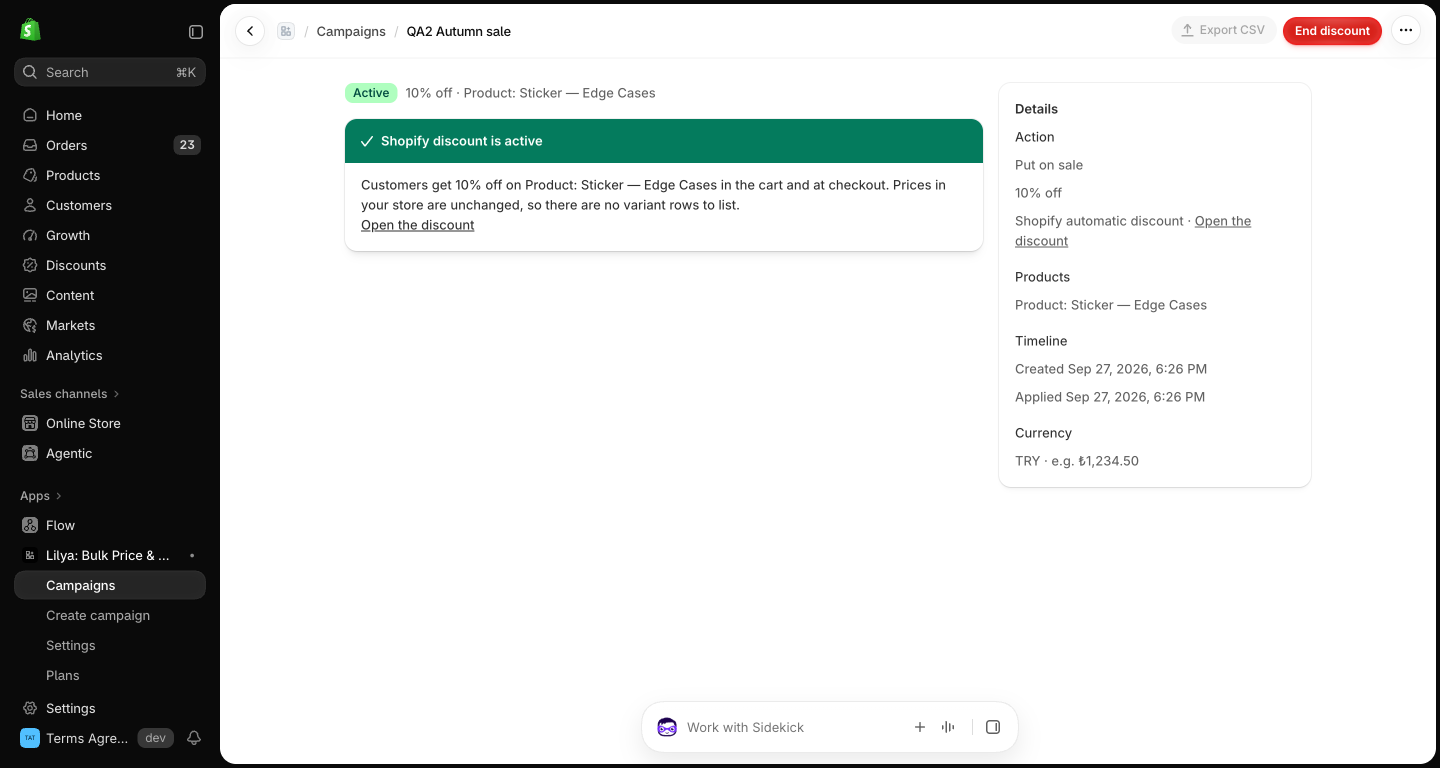
In Advanced settings → How to apply, Pro and Scale can choose Shopify automatic discount for Put on sale. Shopify then applies the discount in cart and checkout while product prices remain unchanged. Product pages do not receive a compare-at strike-through from this method. It supports collections or specific products and cannot be combined with the form's filters, sale tag, badge, auto-include, or Markets updates. A campaign with a start and end time can end the automatic discount at the scheduled time.
The Campaign name becomes the discount title shoppers see in the cart and at checkout. Choose a customer-friendly name before applying. The discount can combine with order and shipping discounts, but not with other product discounts. Check your store's discount setup and test the cart before announcing the offer.
Use Change product prices when the price itself should change on the product page or when you need the other campaign options.