
Appearance
EU Omnibus and the 30-day low
For an announced price reduction, EU guidance describes the prior price as the lowest price the trader applied during at least the 30 days before the reduction. Local rules and exceptions can differ. See the European Commission's guidance on Article 6a of the Price Indication Directive.
Bulk Price & Revert has two separate controls for this workflow. One sets the product's strike-through (compare-at) price from the app's recorded 30-day low. The other displays that low beneath the app's sale badge on the product page. Both are available on Pro and Scale. You can use either or both, depending on how you present the promotion.
| Control | What shoppers see | Where to enable it |
|---|---|---|
| Use the 30-day low as the strike-through price | A compare-at price based on the recorded low, when the new price is below it. | Create campaign → 1. Price change |
| Show the lowest price of the last 30 days (EU Omnibus) | A labelled prior-price line beneath the app's sale badge. | Create campaign → Storefront, then the product-page theme block |
Set the strike-through price
- Open Create campaign and keep the Advanced form layout.
- Choose Put on sale or Set an exact price that lowers the current selling price.
- Turn on Use the 30-day low as the strike-through price.
- Select products, then choose Preview changes. Inspect the new selling price and compare-at value for each variant before applying.
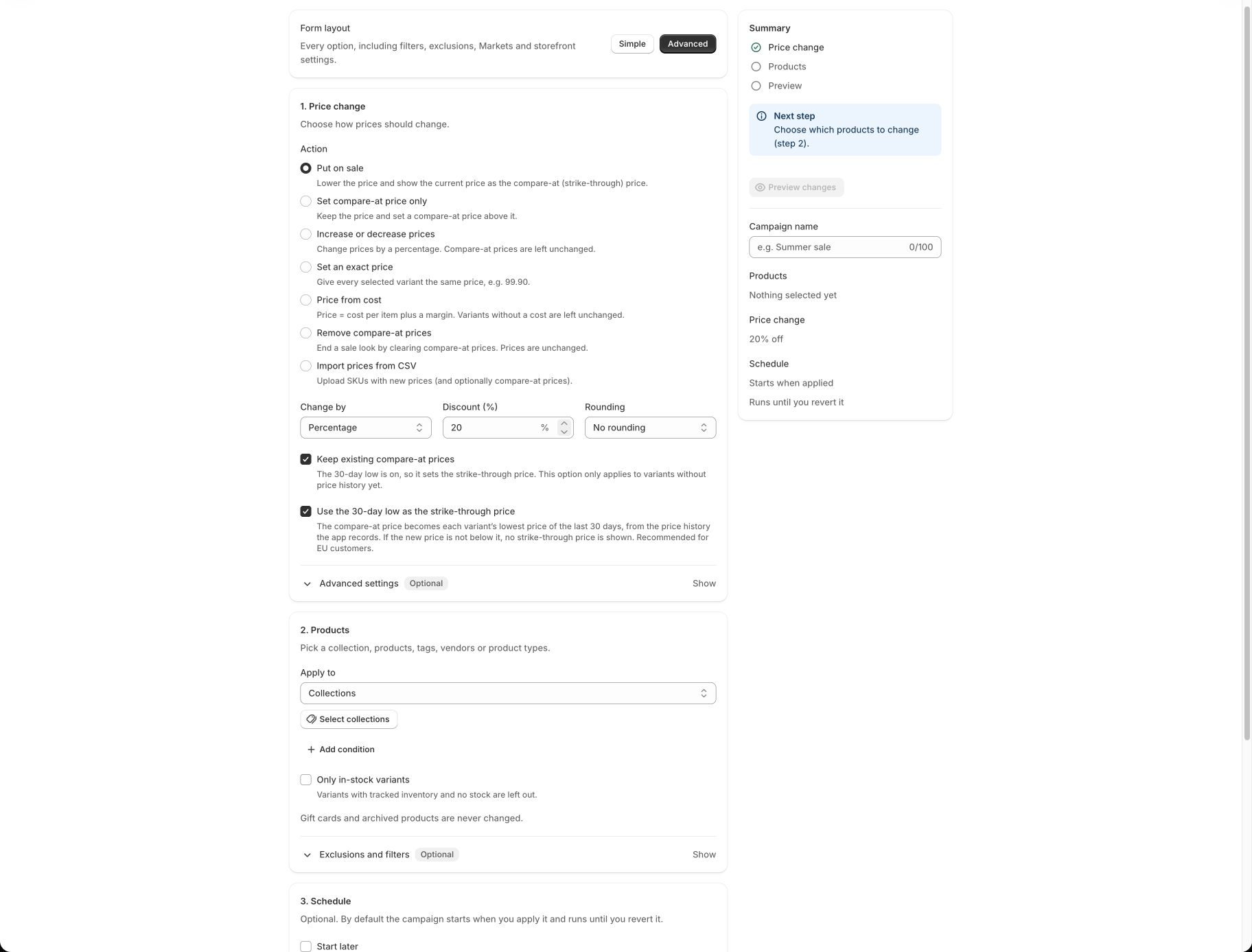
When a recorded low is available, the app uses it as compare-at only if the new price is below that low. For example, if the recorded low is 80 and the new price is 70, compare-at becomes 80. If the new price is 85, the app does not add a strike-through price and preview reports No strike-through (30-day low). Without recorded history for a variant, the normal Keep existing compare-at prices behavior applies instead. The option does not affect an exact price that is not lower than the current price.
If preview reports Above 30-day low, a proposed compare-at price is higher than the recorded low. Review the comparison before publishing the campaign. Changing any setting makes the previous preview stale; select Refresh preview.
Show the prior price on the product page
- In Create campaign, expand Storefront in the Advanced layout.
- Enable Show sale badge and countdown. Then enable Show the lowest price of the last 30 days (EU Omnibus). The second checkbox appears only after the badge is enabled.
- Select Add the sale badge to your theme. In the Shopify theme editor, keep the app's Sale badge block on the product template, check its Show the lowest price of the last 30 days (EU Omnibus) setting, and save the theme.
- Preview and apply the campaign. Open an affected product page in your store's currency and switch variants to check the displayed line.
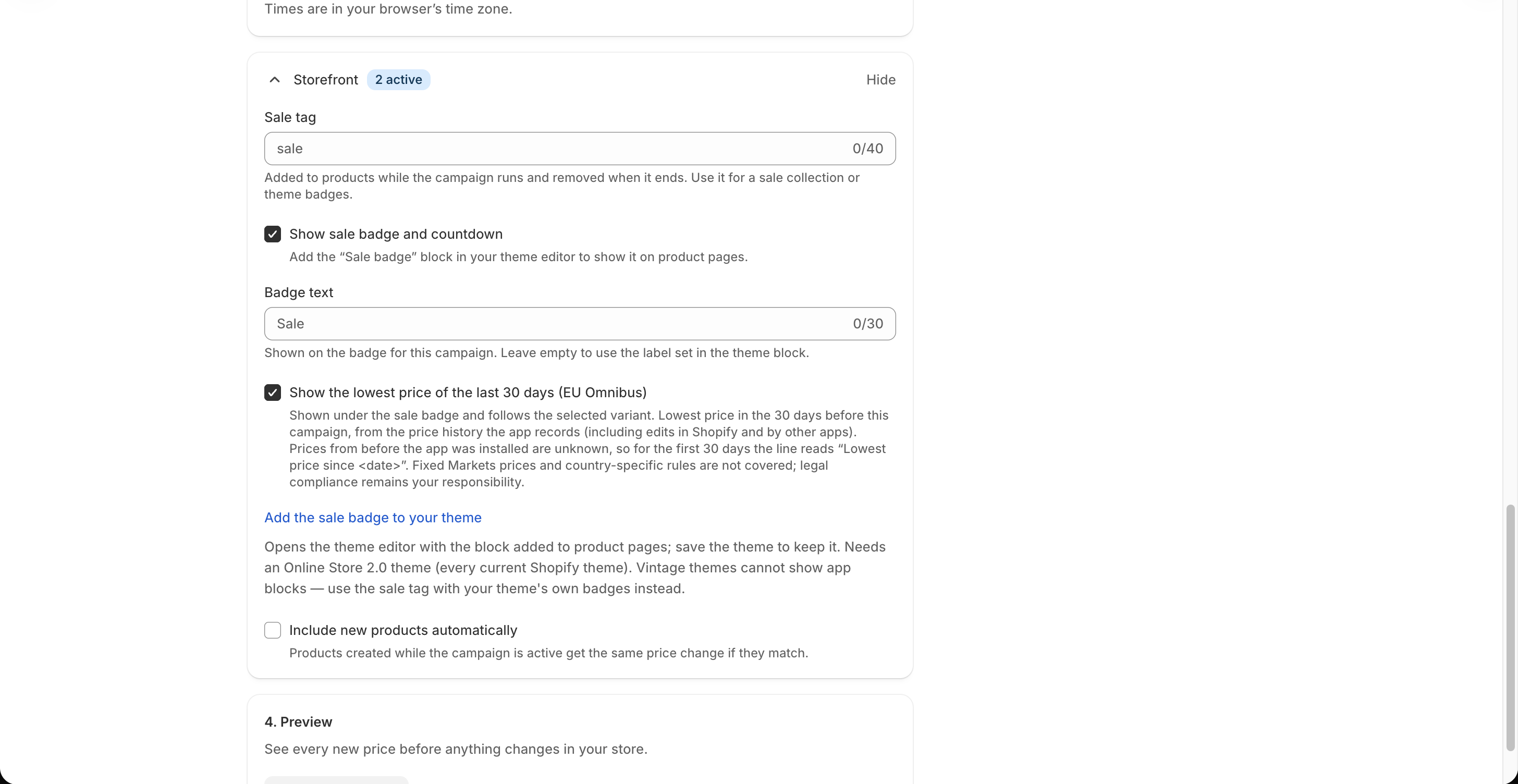
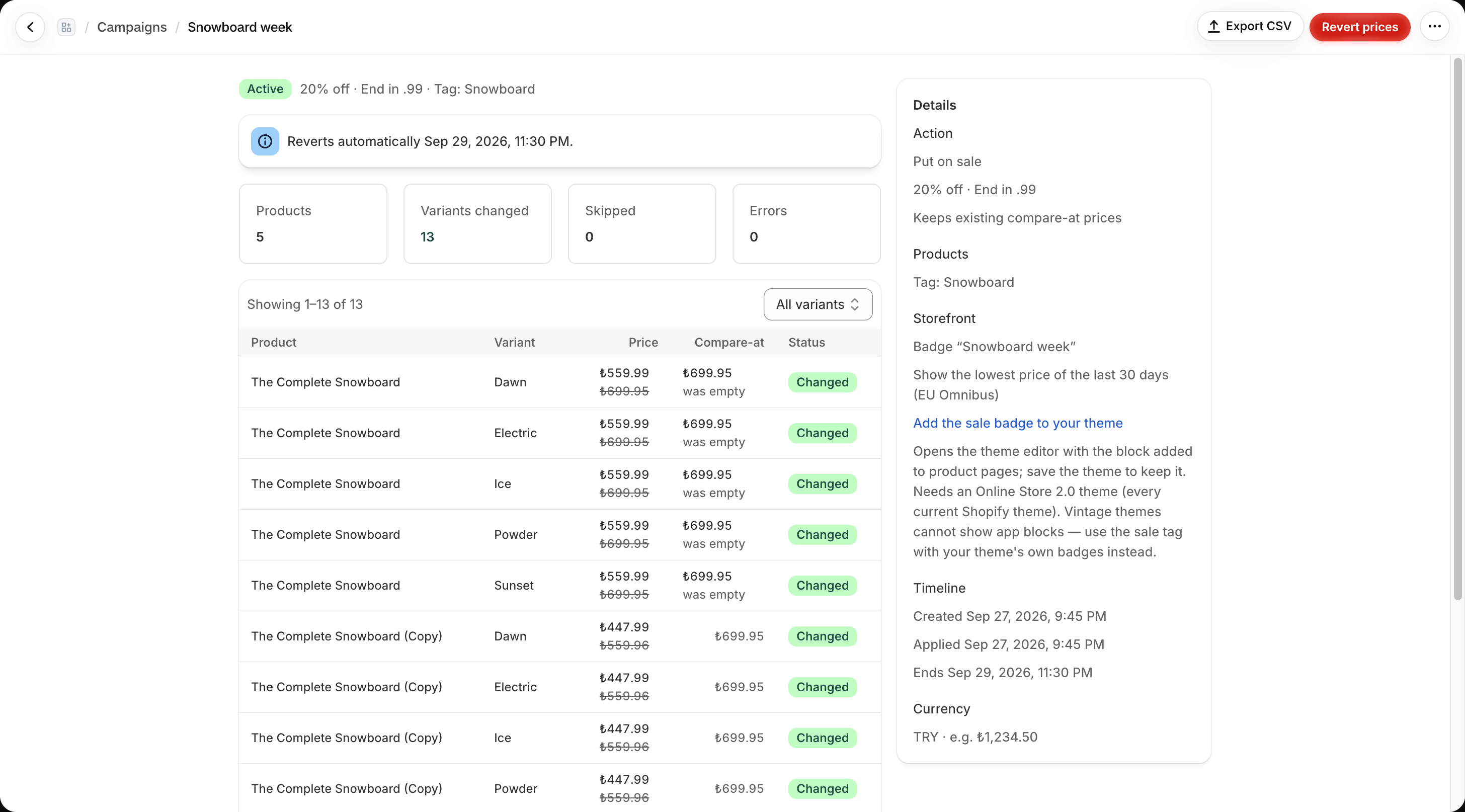
The line sits beneath the app badge and follows the selected variant. It uses the lowest price from the 30 days before that campaign, as recorded by the app. The campaign detail page confirms which storefront options were enabled and provides the theme editor link.
Check the coverage before publishing
- The app cannot reconstruct prices from before it was installed. Until it has a full 30 days of history, the line reads Lowest price since date instead of claiming a complete 30-day period.
- The history uses price changes the app observes in Shopify, including manual edits and changes made by other apps. Check the preview and the product page against your own promotion records.
- The app's line uses the store currency. The theme block hides it when the shopper's cart currency differs from the store currency. Shopify Markets fixed prices are not included in this feature.
- The badge needs an active campaign, the enabled storefront option, and a saved theme app block on the product template. A sale tag by itself does not render it.
- The app does not determine whether a promotion meets every local price-advertising rule. Review country-specific requirements and exceptions for the markets where you sell.
If the badge or prior-price line is missing, start with the Omnibus troubleshooting steps and verify the selected variant, theme block setting, and currency.