
Settings
Open Settings in the app menu. The tabs at the top are Discount, Groups, Membership, Applications, Program page and Emails. Each tab saves only its own fields: change something, then select Save in the save bar (or Discard to go back). If a value isn't valid, "Fix the highlighted fields" appears and the field says what's wrong.
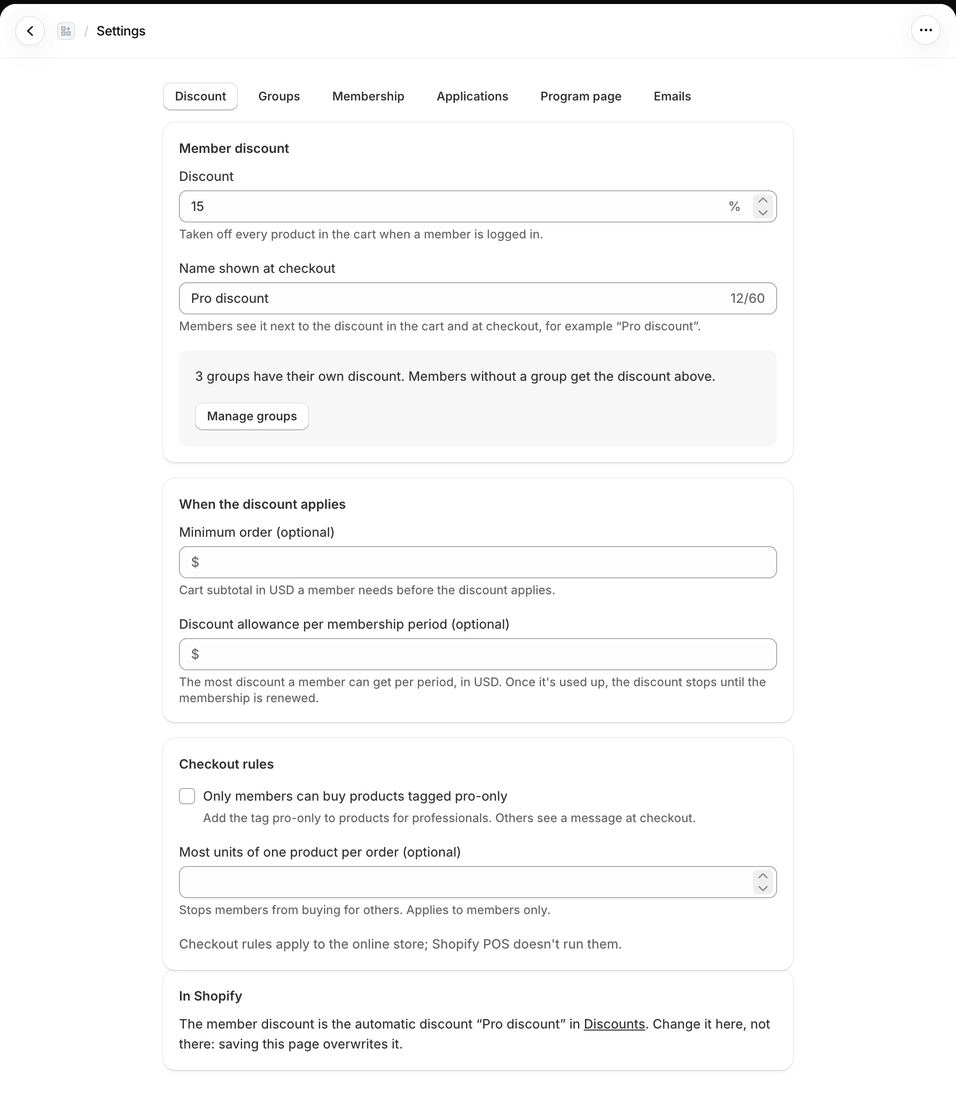
Discount
| Setting | What it does |
|---|---|
| Discount | The program discount in percent, taken off every product in the cart when a member is logged in. Members in a group or with a personal discount get theirs instead. |
| Name shown at checkout | The discount's name in the cart and at checkout, for example "Pro discount". Also the name of the automatic discount in Shopify admin → Discounts. It must not be used by another discount in your store. |
| Minimum order (optional) | Cart subtotal, in your store currency, a member needs before the discount applies. |
| Discount allowance per membership period (optional) | The most discount a member can get per membership period, in your store currency. Once it's used up, the discount stops until the membership is renewed. The last order gets only what's left of the allowance. |
| Sell products tagged pro-only to members only | In Shopify › Products, add the tag pro-only to products only professionals may buy. Anyone else can add them to the cart, but checkout asks them to log in as a member or remove them. |
| Most units of one product a member can buy per order (optional) | Example: with 2, a member can buy at most 2 of the same product in one order, so they can't buy in bulk for others. Customers who aren't members have no limit. Empty = no limit. |
The member discount combines with order and shipping discounts, not with other product discounts.
Checkout rules — the pro-only tag and the units limit — work at online checkout only. They don't run in Shopify POS, on draft orders or when you edit an order.
What the customer sees at checkout when a rule stops the order:
| Rule | Message at checkout |
|---|---|
| Sell products tagged pro-only to members only | "Some items are only available to pro members. Log in with your member account, or remove them to continue." |
| Most units of one product a member can buy per order (optional) | "Pro members can buy up to 2 of each product per order." (with your number) |
To make a product members-only:
- Turn on Sell products tagged pro-only to members only and select Save.
- In Shopify admin → Products, open the product and add the tag
pro-only(exactly this, in lower case) under Tags, then Save. - Test it: as a customer who isn't a member, add the product to the cart and go to checkout. Checkout shows the message and the order can't be placed until the product is removed.
The section In Shopify links to the automatic discount. Change it here, not in Discounts: saving this tab overwrites it.
Groups
Member groups with their own discount. See Groups and discounts.
Membership
| Setting | What it does |
|---|---|
| Memberships last | A number of months from approval (with Months: 12 means a membership approved on March 5 runs until March 4 next year), Until the same date every year (season end) (with Season ends on (MM-DD), for example 06-30; approvals in the last 30 days of a season run to the end of the next one), or No end date (for trade programs). |
| Grace period | The discount keeps working this many days after a membership ends, so members can renew without a gap. 0 for none. |
| Ask for new proof when members renew | Members upload an up-to-date document with their renewal request. You review it under Applications. |
| Mark members as tax exempt | For trade programs that sell tax-free to registered businesses. Shopify stops charging tax to members; it's removed again when a membership is cancelled. |
Examples:
| You want | Set |
|---|---|
| A year from approval | A number of months from approval, Months 12 |
| Everyone renews before the winter season | Until the same date every year (season end), Season ends on (MM-DD) 10-31 |
| Trade accounts that never expire | No end date |
| A week to renew without losing the discount | Grace period 7 |
Changing the length applies to new approvals and renewals. Existing end dates stay; change one on the member page.
Applications
| Setting | What it does |
|---|---|
| Accept applications without a customer account | Visitors apply with just their e-mail. To get the discount they still log in with that e-mail when they shop. Off: they log in or create an account first. |
| Company or organization, Role or job title, Anything else we should know, Proof document | Each one Required, Optional or Don't ask. Name and e-mail are always asked. Proof documents are PDF or image files, up to 3 files of 5 MB. |
| Member group | Required or Don't ask. Shown once you have groups: applicants pick their group, and you can still change it when you approve. |
| Email domains (optional) | One per line. Applicants with an e-mail at these domains (or their subdomains) are approved at once. |
| Invite codes (optional) | One per line, for example one per partner school or club. Applicants who enter a code are approved at once. The form shows a code field when you have codes. |
See Automatic approval for an example with domains and codes.
The form never asks for an address or phone number. It has an optional, separate box for marketing e-mails; the answer is shown on the application.
Program page
| Setting | What it does |
|---|---|
| Heading | The heading of /apps/pro and the form block. Also used as the program name in e-mails. |
| Introduction | Who qualifies and what members get. Shown above the application form. |
| Terms (optional) | When you add terms, applicants must accept them to apply. Plain text; empty lines start a new paragraph. |
Emails
The seven member e-mails, each one on or off and editable per language. See Member e-mails.
Example: an interior design trade program
A furniture and fabrics store sells to interior designers at 20 % off, tax-free for registered businesses, and renews everyone at the end of the year.
| Tab | Setting | Value |
|---|---|---|
| Discount | Discount | 20 |
| Discount | Name shown at checkout | Trade discount |
| Discount | Sell products tagged pro-only to members only | On (fabric sample books are tagged pro-only) |
| Membership | Memberships last | Until the same date every year (season end), 12-31 |
| Membership | Grace period | 14 |
| Membership | Ask for new proof when members renew | On |
| Membership | Mark members as tax exempt | On |
| Applications | Company or organization, Proof document | Required |
| Applications | Email domains (optional) | The domains of two partner studios |
| Program page | Heading | Trade program |
A designer approved on May 10 is a member until December 31. One approved on December 10 — in the last 30 days of the season — is a member until December 31 of the next year. Everyone gets the Ending in 30 days e-mail on December 1 and Ending in 7 days on December 24, and their renewal request asks for a current business certificate. Members who haven't renewed keep the discount until January 14 (the grace period).
Common questions
I changed the discount. When do members see it? At their next checkout. Saving updates the automatic discount in Shopify right away.
Can I rename the discount members see? Yes: Name shown at checkout. It must not be the name of another discount in your store.
I changed the membership length. Do existing members get new dates? No. Existing end dates stay. Change one on the member page.