
Members and import
Member list
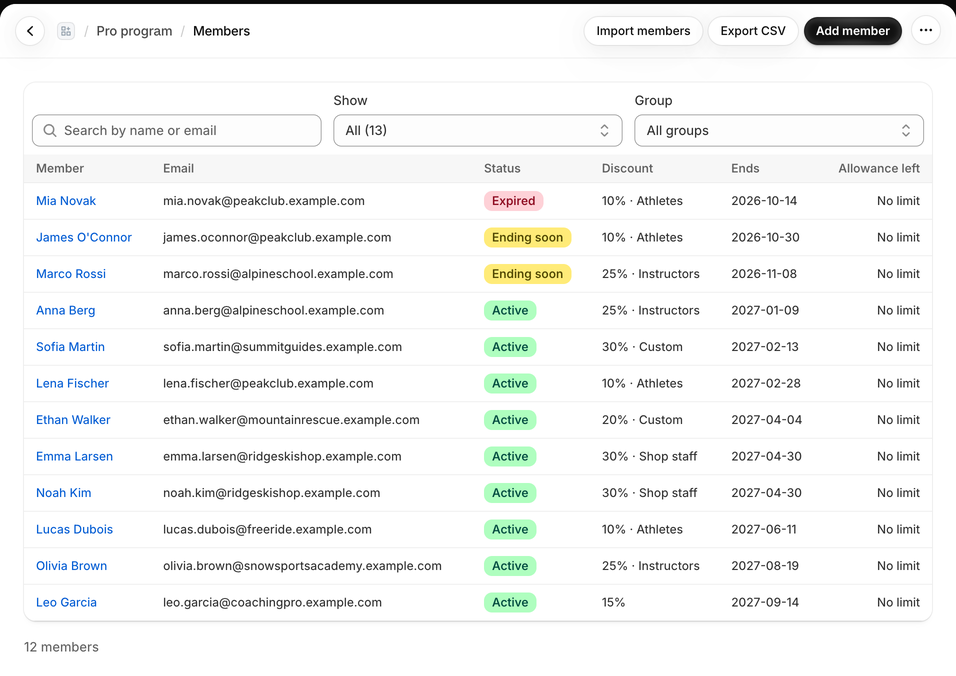
Open Members. The table shows each member's name, e-mail, Status, Ends and Discount (for example "25% · Instructors"). A Renewal requested badge marks members who asked to renew.
- Search by name or e-mail.
- Show: All, Active, Ending within 30 days, In grace period, Expired, Cancelled, Renewal requested (with counts).
- Group filter: All groups, one group, or No group.
Add a member
For someone you already know — a staff member, a partner, a pro who asked by phone:
- Open Members and select Add member.
- Enter the Email, and optionally First name (optional), Last name (optional) and Group.
- Confirm with Add member.
The app uses the Shopify customer with that e-mail or creates one. The membership starts today, the end date follows Settings → Membership, and the member receives Welcome to the program.
Member page
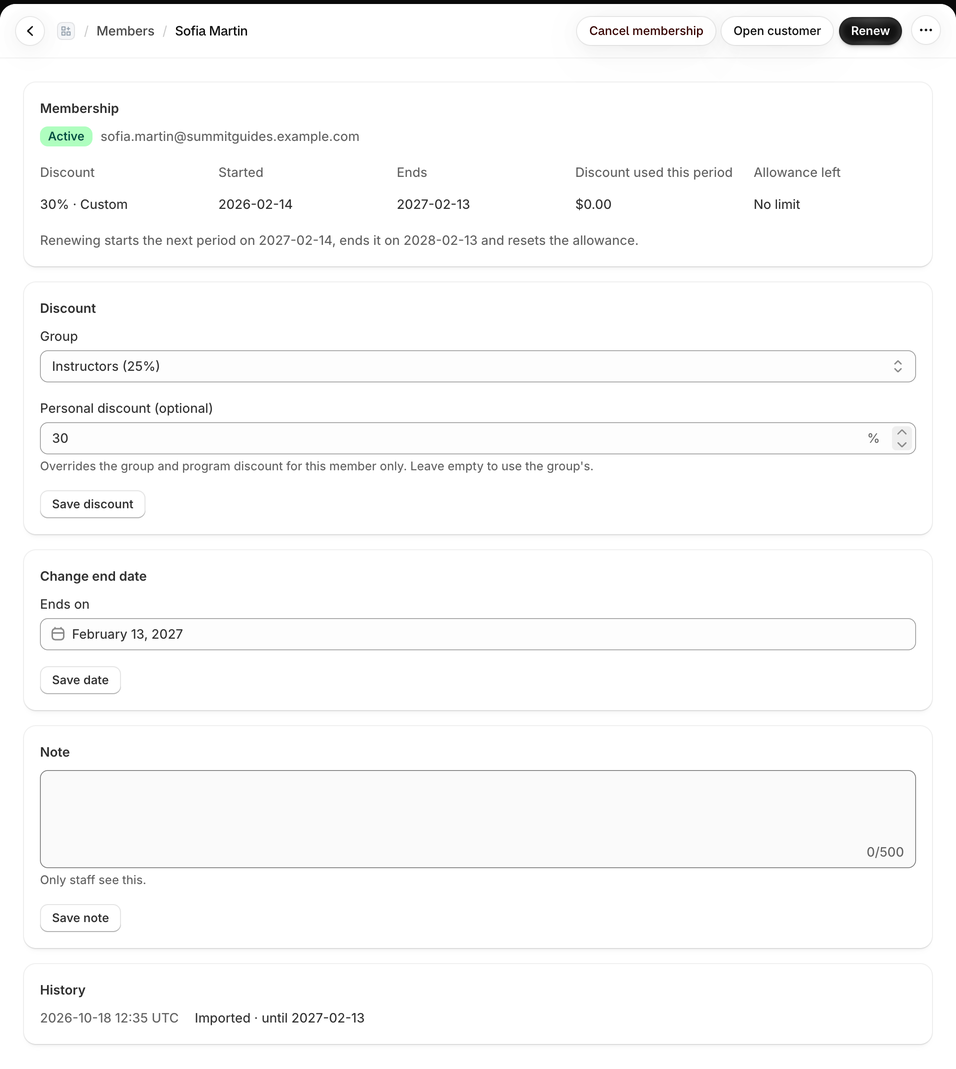
Select a member to open their page.
| Section | What you can do |
|---|---|
| Page actions | Renew starts the next period (from the day after the current end, or today if it has ended), resets the allowance and sends Membership renewed; the Membership section says which dates the next period gets. Cancel membership stops the discount at once; Reactivate brings it back. Open customer opens the customer in Shopify. |
| Membership | Status, e-mail, Discount, Started, Ends, Discount used this period, Allowance left. |
| Change end date | Set any end date in Ends on and select Save date. |
| Discount | Group, Personal discount (optional), Save discount. See Groups and discounts. |
| Note | A Staff note (only staff see it), Save note. |
| History | Membership started, renewed, end date changed, cancelled, reactivated, imported, discount changed, renewal requested by the member, e-mails sent — with dates. |
Example: renew early, or extend a season
- A ski instructor's membership ends on 2026-11-08 and she asks to renew in October. Open her page and select Renew: the next period starts on 2026-11-09, so she loses no days, and her allowance starts again.
- A key account should stay until the end of next year. In Change end date, set Ends on to December 31 and select Save date. No e-mail is sent; the reminders follow the new date.
- A member left the profession. Select Cancel membership and confirm. The discount stops at once; Reactivate brings the same membership back if it was a mistake.
A cancelled member's tax exempt mark is removed (if Mark members as tax exempt is on). Cancelling doesn't send an e-mail.
Import members
Bring members from a spreadsheet, a form app or another pro program tool. Open Members → Import members.
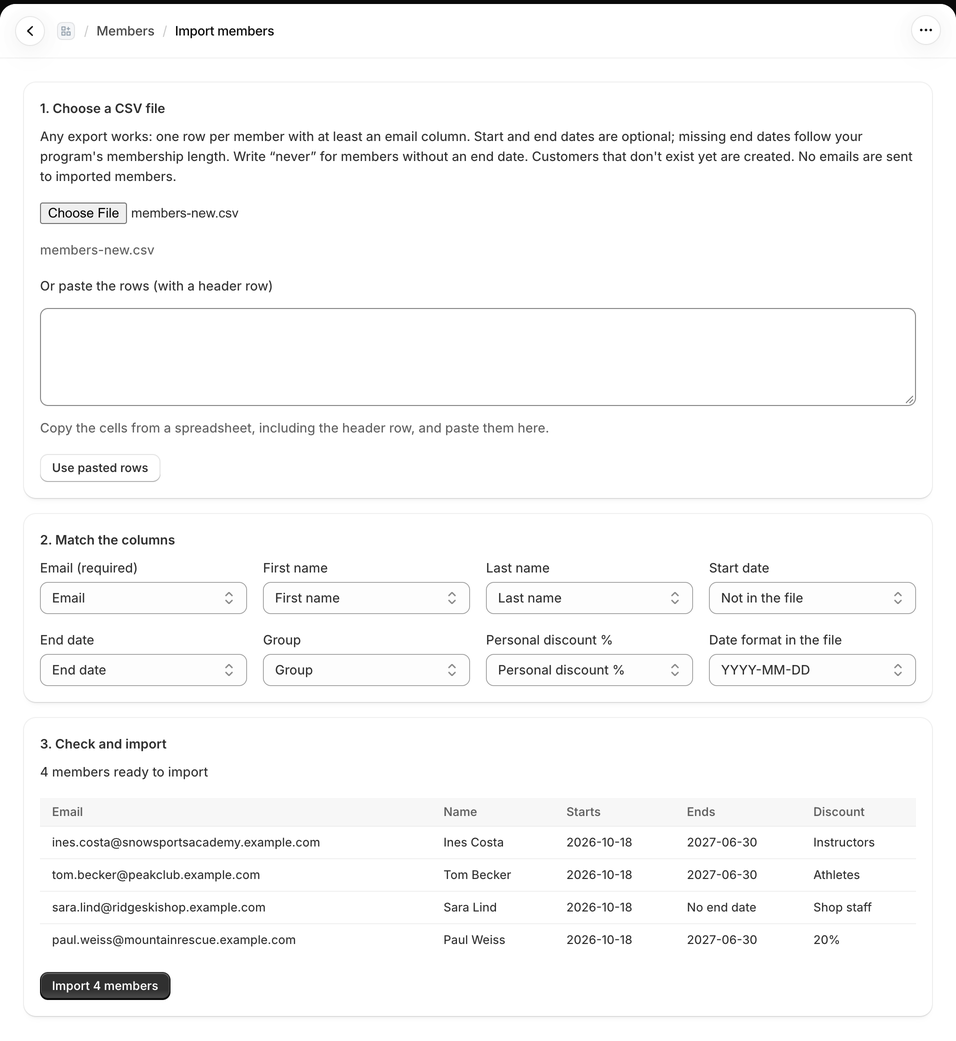
- Choose a CSV file — or paste the rows from a spreadsheet, including the header row (Or paste the rows (with a header row)).
- Match the columns — the app guesses which column is which; change any match. Columns: e-mail (required), first name, last name, start date, end date, group, personal discount. Pick the Date format in the file: YYYY-MM-DD, MM/DD/YYYY, DD/MM/YYYY or DD.MM.YYYY (the app guesses it from the dates).
- Check and import — the preview shows each row's Email, Name, Starts, Ends and Discount, and lists rows that can't be imported with the reason. Then import.
email,first name,last name,start date,end date,group,personal discount %
maya.lindqvist@example.com,Maya,Lindqvist,2026-03-05,2027-03-04,Instructors,
sam.okafor@example.com,Sam,Okafor,2026-01-10,never,Shop staff,
lucia.moreno@example.com,Lucía,Moreno,,,Athletes,35
Rules:
- An empty start date means today; an empty end date is calculated from Settings → Membership.
never,noneorno endmeans no end date. - The group must already exist in Settings → Groups (same name). The personal discount is a percentage from 0.01 to 100.
- Customers that don't exist yet are created in Shopify. A member who is already in the program is updated with the row's dates, group and discount.
- Imported members get no welcome e-mail. Up to 5,000 rows per file.
- On the Free plan, rows over the 10 active members are skipped and counted.
Example: moving from another pro program app
- In the old app, export your members to CSV.
- In Settings → Groups, create the groups the file uses, with the same names.
- Members → Import members, choose the file, and check the column matches — especially the end date and the Date format in the file.
- In the preview, fix or note the rows that can't be imported, then import.
- Tell your members about the new program page (
/apps/pro) yourself: imported members get no welcome e-mail.
Run the import again with a corrected file if needed: members already in the program are updated, not added twice.
Export members
On Members, select Export CSV. The file members-<date>.csv has the columns Email, Name, Status, Start date, End date (never for no end), Discount used (<currency>), Source, Group and Personal discount %. It can be imported again as it is.
Common questions
What's the difference between Cancelled and Expired? Cancelled means you stopped the membership. Expired means the end date and grace period have passed. Neither counts towards your plan's active members.
Does cancelling refund anything or delete the customer? No. The Shopify customer and their orders stay; only the member discount stops.
Can members see their own end date? Yes, on /apps/pro, in the form block, and in the Pro membership block of their customer account.
What's "Discount used this period"? The total discount the member got on orders in the current membership period. Cancelled orders are subtracted again.