
Groups and discounts
Every member gets exactly one discount percentage at checkout. The app picks it in this order:
- The member's personal discount, if you set one on the member page.
- Otherwise the discount of the member's group.
- Otherwise the program Discount from Settings → Discount.
The member list shows it in the Discount column, for example "25% · Instructors" or "35% · Custom".
Create a group
- Open Settings → Groups and select Add group.
- Enter the Group name (for example "Instructors") and its Discount (for example 25). The discount replaces the program discount for this group's members.
- Select Add group.
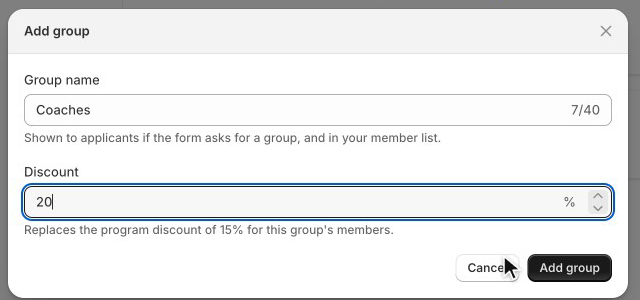
You can have up to 20 groups. A group's discount is a percentage from 0.01 to 100. Two groups can't have the same name.
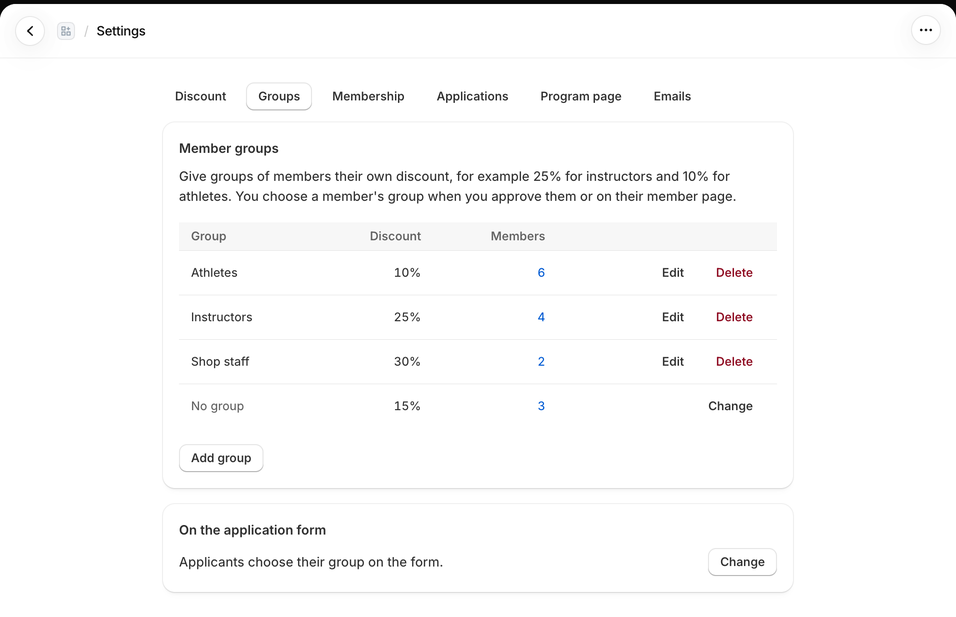
Example: a ski shop
A ski and snowboard shop wants different discounts for different professionals.
| Who | Set up as | Discount at checkout |
|---|---|---|
| Ski instructors | Group Instructors, 25 % | 25 % |
| Competition athletes | Group Athletes, 10 % | 10 % |
| Shop staff | Group Shop staff, 30 % | 30 % |
| Mountain rescue volunteers (no group) | Program Discount in Settings → Discount, 15 % | 15 % |
| The director of a partner ski school | Group Instructors + Personal discount (optional) 35 % | 35 % |
Steps:
- Settings → Discount: Discount 15, Save.
- Settings → Groups: Add group three times (Instructors 25, Athletes 10, Shop staff 30).
- Settings → Applications: Member group → Required, Save. The form now shows I'm applying as with your groups.
- When the ski school director is a member, open her member page, enter 35 in Personal discount (optional) and select Save discount. The member list shows "35% · Custom".
On a $600.00 snowboard an instructor pays $450.00, an athlete $540.00 and the director $390.00.
Put members in a group
- On the application form: in Settings → Applications set Member group to Required. Applicants pick their group; the application shows it, and Approve uses it. You can pick another group before approving.
- When you add a member: Members → Add member has a Group field.
- On the member page: change Group in the Discount section and select Save discount.
- By CSV: a Group column with the group's name (see Members and import).
Change or delete a group
Edit a group to rename it or change its discount. Its members' discount changes from their next checkout. Members keep their group when you rename it.
To delete a group, select Delete in its row, then Delete group. If it has members, first choose where to move them (Move its … members to): another group, or No group (they get the program discount).
Personal discount
For a key account or a negotiated rate:
- Open Members and select the member.
- In Discount, enter a Personal discount (optional), for example 35.
- Select Save discount.
It overrides the group and program discount for this member only, and the member's History shows "Discount changed". Clear the field and select Save discount to use the group's discount again.
Allowance and minimum order
The Discount allowance per membership period (optional) and the Minimum order (optional) in Settings → Discount apply to every member, whatever their percentage. The member page shows Discount used this period and Allowance left. A renewal starts a new period with the full allowance. Cancelled orders give their discount back.
Example: with an allowance of $500 and 25 %, a member gets the discount on about $2,000 of purchases per period. If $40 of allowance is left and the next order would earn $75 off, the member gets $40 off; after that, no discount until the membership is renewed.
On product pages
The Pro member price theme block shows a logged-in member their own price, for example "Your pro price: $420.00 — Applied automatically at checkout.", using their personal, group or program discount. Visitors and customers who aren't members see "Professionals save 15%. Apply for the pro program", with a link to your program page (turn it off with Invite visitors to apply). The invitation shows the program discount.
| Member | Visitor |
|---|---|
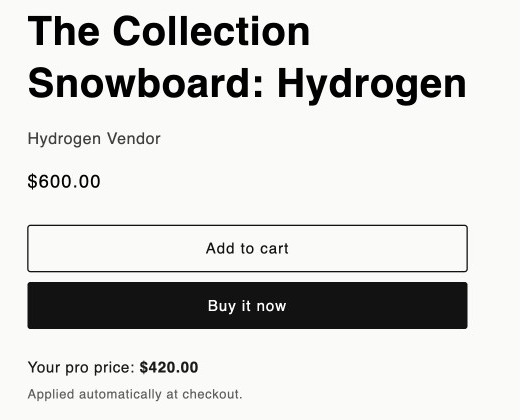 | 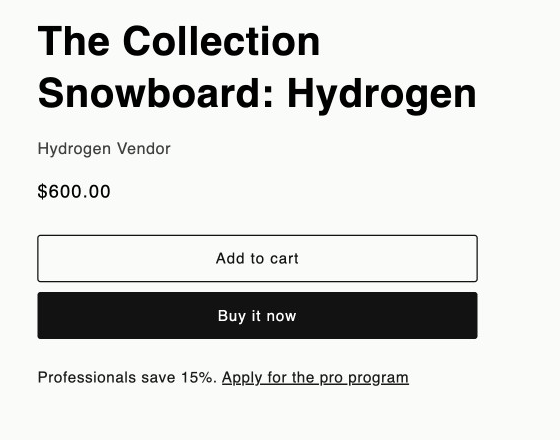 |
To add it:
- On the app home, in the Setup guide, select Add block. The theme editor opens on the product template with the block under the price.
- Optional: move the block, change Text color, or turn off Invite visitors to apply.
- Select Save in the theme editor.
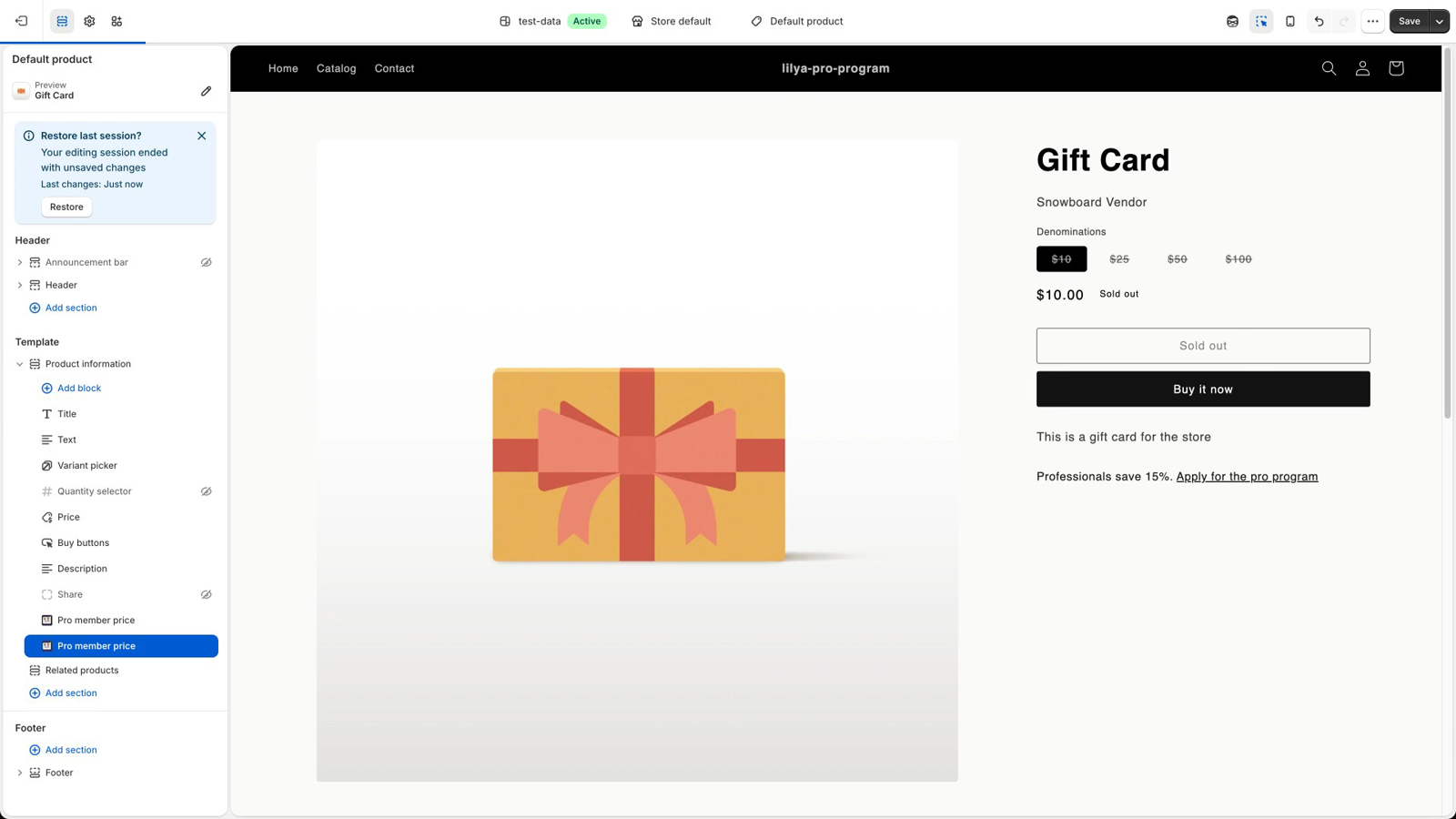
The block works on product templates only. The price is a preview; the actual discount is calculated at checkout (an allowance or minimum order can change it).
Common questions
Can a member be in two groups? No. Each member has one group (or none) and gets one discount.
Do the group discounts stack with the program discount? No. A member gets exactly one percentage: personal, otherwise group, otherwise program.
Can a group get free shipping or a fixed amount off? No. Groups set a percentage off products. The member discount combines with your own order and shipping discounts.
I changed a group's discount. Do existing members get it? Yes, from their next checkout.