
Online orders
Orders from your online store (and other channels) that a store location has to fulfill can be printed on that location's POS receipt printer: a tile on the POS home screen shows how many are new, and staff print an order ticket for each one.
Shopify POS can't print without a tap, so nothing prints by itself: the tile counts the new orders and staff tap to print them.
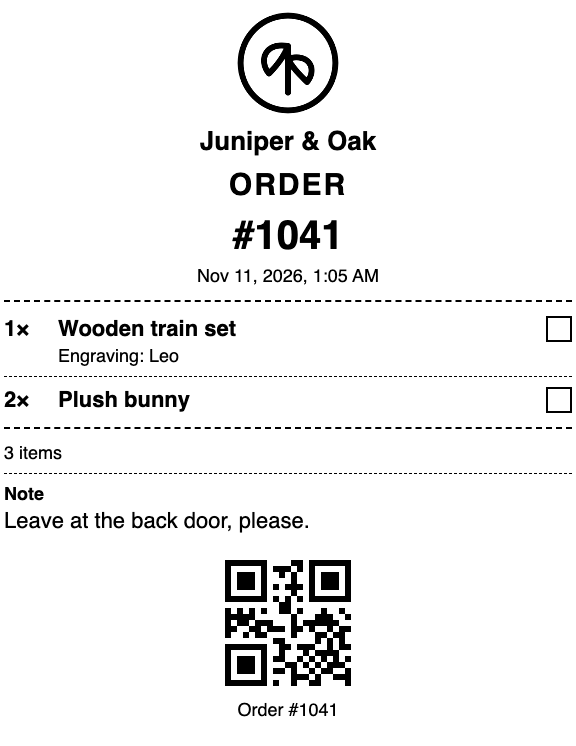
What the ticket shows
- Order number and date
- Pickup, Local delivery or the shipping method
- Each item with its quantity and a checkbox for picking, the variant, SKU, bundle name and line item properties (the Receipt settings choose which properties)
- The order note
- The QR code or barcode chosen under Code at the bottom: POS scans it to open the order
No prices and no customer name or address are printed. Labels follow the receipt language (and second language) on the Receipt page.
Set up (once)
In Shopify admin go to Point of Sale › Settings › POS app (the POS editor), select a smart grid page, choose Add tile, pick Online orders and select Save.
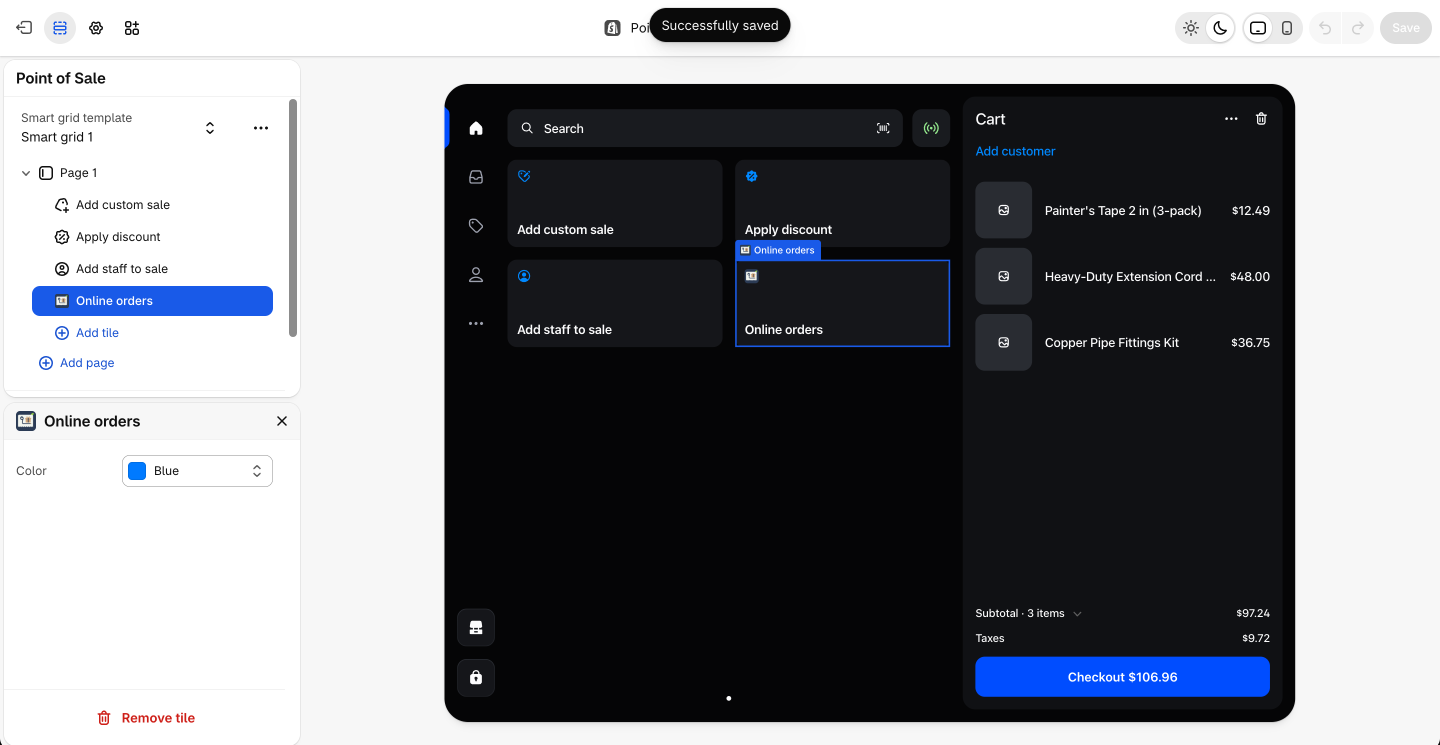
Make sure online orders are assigned to this store location (for example with local pickup, or when the location fulfills shipping orders).
Print order tickets in POS
- The Online orders tile on the home screen shows the number of new orders. It refreshes every two minutes and when POS opens.
- Tap the tile. Under New you see open, unfulfilled orders from the last 7 days for this location.
- Tap Print new to print them all, or Print next to one order. With one receipt printer connected they print straight away.
- Printed orders move to Printed, where Print again reprints one.
Each ticket counts as one print on the Free plan (20 a month, together with gift and sales receipts). See Plans.
Good to know
- Orders that are fulfilled, cancelled, older than 7 days or assigned to another location don't appear.
- The app keeps only the IDs of printed orders, for 30 days, to tell new orders from printed ones.