
Quick start
- Install Lilya: POS Gift Receipts. The app opens on the Free plan with 20 gift receipts a month; you can change plans later.
- On the Gift receipts page, select Upload logo and choose a PNG or JPG. Check Store name and Exchange deadline (30 days after the purchase by default), then select Save. The Preview shows the receipt as it will print. See Receipt settings.
- Turn the app on in POS (once): in Shopify admin go to Point of Sale › POS app › Edit, open Apps (the grid icon), choose Split gift receipts, turn on Activate on (Order details, Post-purchase) and select Save. Shopify doesn't turn app actions on automatically.
- Make sure a receipt printer is paired in Shopify POS under Settings › Hardware. Without one you can still print through the system print dialog. See Printers.
- In Shopify POS, complete a sale with two or more items.
- On the screen after the sale, tap Split gift receipts, then One receipt per item. Type a recipient name and message if you like.
- Tap Print 2 at the top. Each receipt prints with only its own items and no prices, and POS shows "2 gift receipts printed."
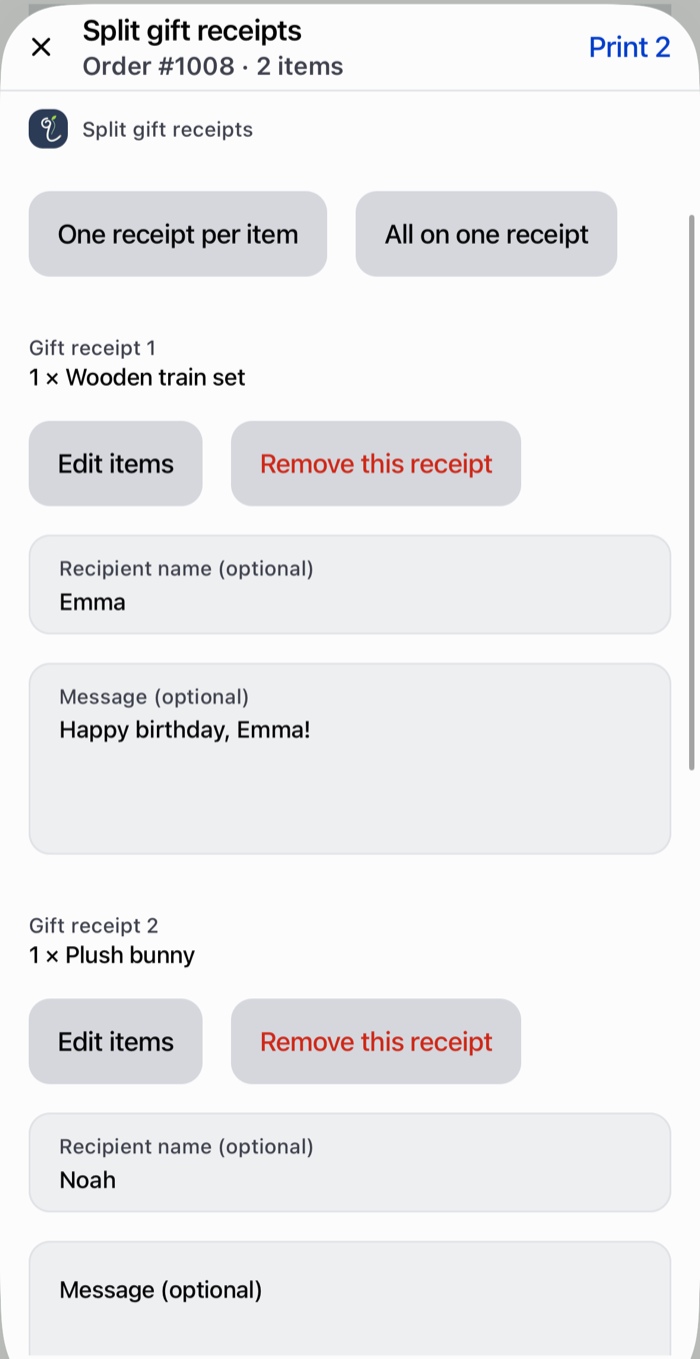
The app adds nothing to the POS home screen. Once turned on (step 3), Split gift receipts appears after each sale and on every order.