
Sales receipt
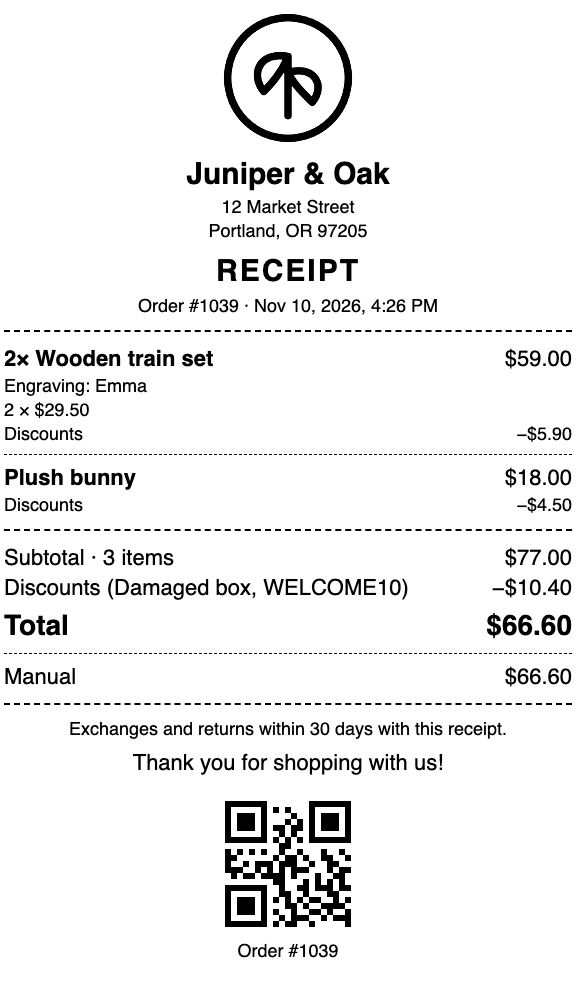
Besides gift receipts, the app prints a complete sales receipt of its own on the receipt printer paired with POS. Use it when Shopify's receipt editor can't do what you need: since the new editor, the item list of Shopify's receipt can't be changed.
What you can control that Shopify's receipt doesn't offer:
- A dashed line between items
- Bundles printed as one line, without their component products and "Part of" lines
- Line item properties: all, none, or only the ones you name (for example Engraving)
- SKU on each line
- A second language for every label ("Total / Gesamt")
- A large QR code (or barcode) at the bottom that POS scans to open the order for a return or exchange
- Your own header (address, phone, VAT or tax ID), return policy and footer
Prices, discounts (with the code or title), shipping, taxes, tip, total and payments always come from the order in Shopify, so the receipt matches your admin.
Set up (once)
Watch the 80-second walkthrough first:
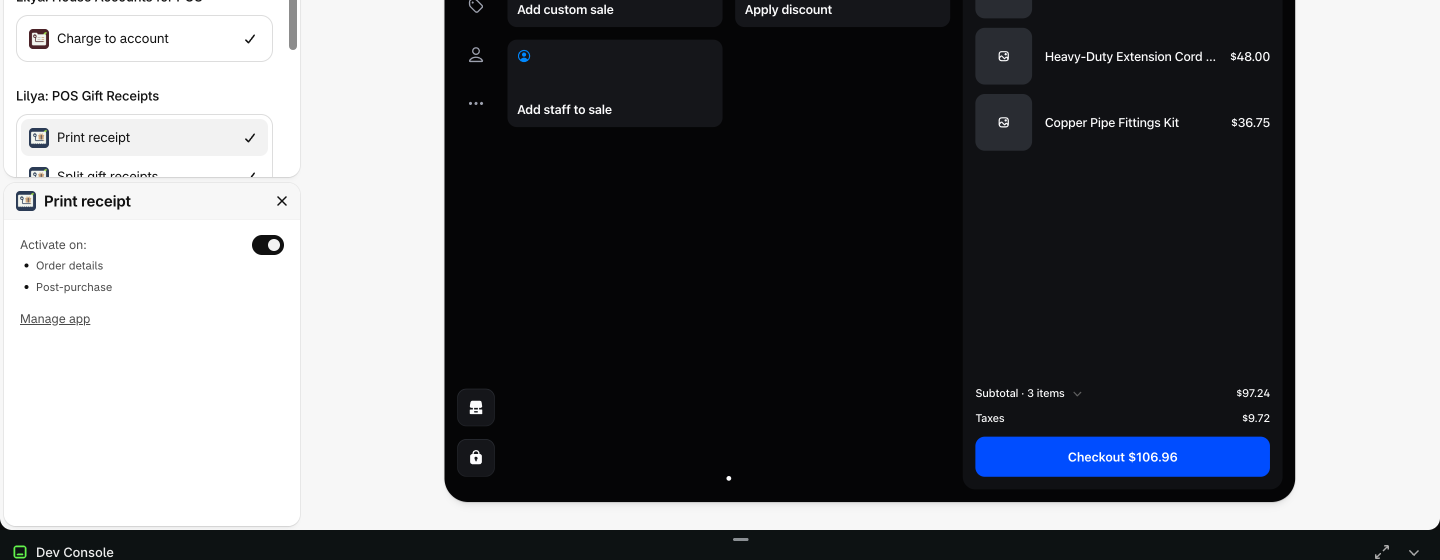
Turn it on in POS. Shopify doesn't turn app actions on automatically. In Shopify admin go to Point of Sale › Settings › POS app (the POS editor), open Apps (the grid icon at the top left), choose Print receipt, turn on Activate on (Order details, Post-purchase) and select Save. Do this for each smart grid template you use.
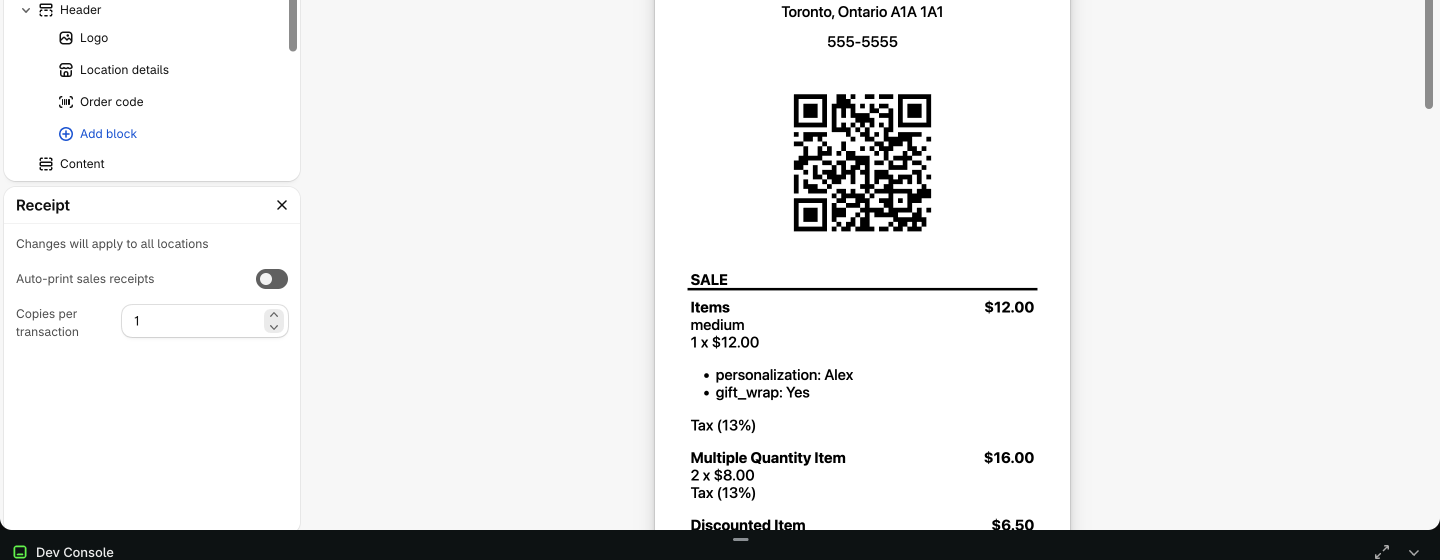
Stop Shopify's own receipt from printing automatically (otherwise every sale prints two receipts). Go to Point of Sale › Settings › Printed receipts, select Receipt at the top of the list, turn off Auto-print sales receipts and select Save. The Location picker applies it to all locations or one.
Optional: in the POS editor settings, turn off Customer receipt selection › Show on POS device, so staff aren't asked how the customer wants Shopify's receipt.
In the app, open Receipt and choose your settings (below). Select Save.
Shopify's own Print receipt button stays in POS; it prints Shopify's receipt. Locations in Sweden always print Shopify's receipt automatically.
Print a receipt in POS
After a sale, or later from Orders › order › ⋯ (more actions), tap Print receipt (the action with the app's icon).
- With one receipt printer connected, it prints straight away and POS shows "Receipt printed."
- With no printer or several printers, a window opens where you pick the printer or use the system print dialog.
Orders from the last 60 days can be printed, as often as you like (each print counts toward the Free plan, see Plans).
Receipt settings
Open Receipt in the app. The Preview updates as you change settings.
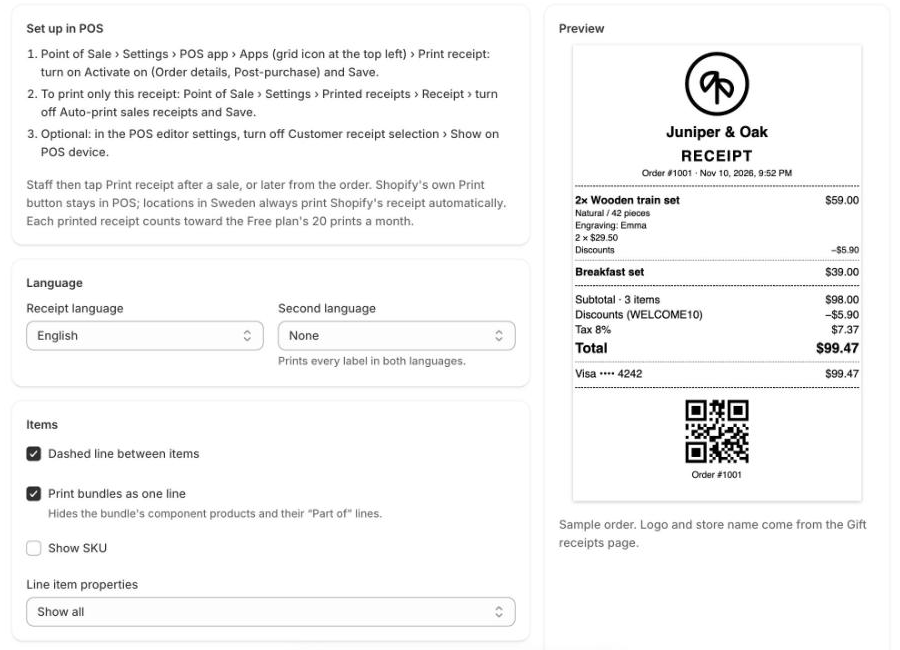
| Setting | What it does |
|---|---|
| Receipt language | Language of every fixed label: English, Deutsch, Français, Español, Italiano, Nederlands, Português, Türkçe, 日本語. |
| Second language | Prints every label in both languages, for example "Subtotal / Zwischensumme". |
| Dashed line between items | A thin dashed line after each item. |
| Print bundles as one line | A bundle prints as its title with the bundle's price; its component products are hidden. Turn off to print each component with the bundle name under it. |
| Show SKU | Adds the SKU under each item. |
| Line item properties | Show all, only the ones you list (comma-separated names), or none. Properties whose name starts with _ are never printed. |
| Title | The big title, for example RECEIPT or KASSENBON. |
| Header | Text under the store name: address, phone, VAT or tax ID. Leave empty to print your store address. |
| Return policy and Footer | Printed at the end of the receipt. |
| Code at the bottom | A large QR code, a barcode like Shopify's receipts, or none. POS scans it from the Orders search to open the order. |
| Fiscal note | Adds a line such as "This is not a fiscal receipt." in the receipt language. You can change the text. |
The logo and store name come from the Gift receipts page.
Countries with fiscal receipts
In Germany, Austria, France, Italy, Spain, Portugal, Sweden, Croatia and Romania the legal sales receipt must come from a certified fiscal system (for example a TSE in Germany or an RT printer in Italy). This app's receipt can't replace it: keep printing your fiscal receipt and give this one as an extra customer copy. The app shows a reminder on the Receipt page in these countries, and you can turn on the Fiscal note.