
Print gift receipts in POS
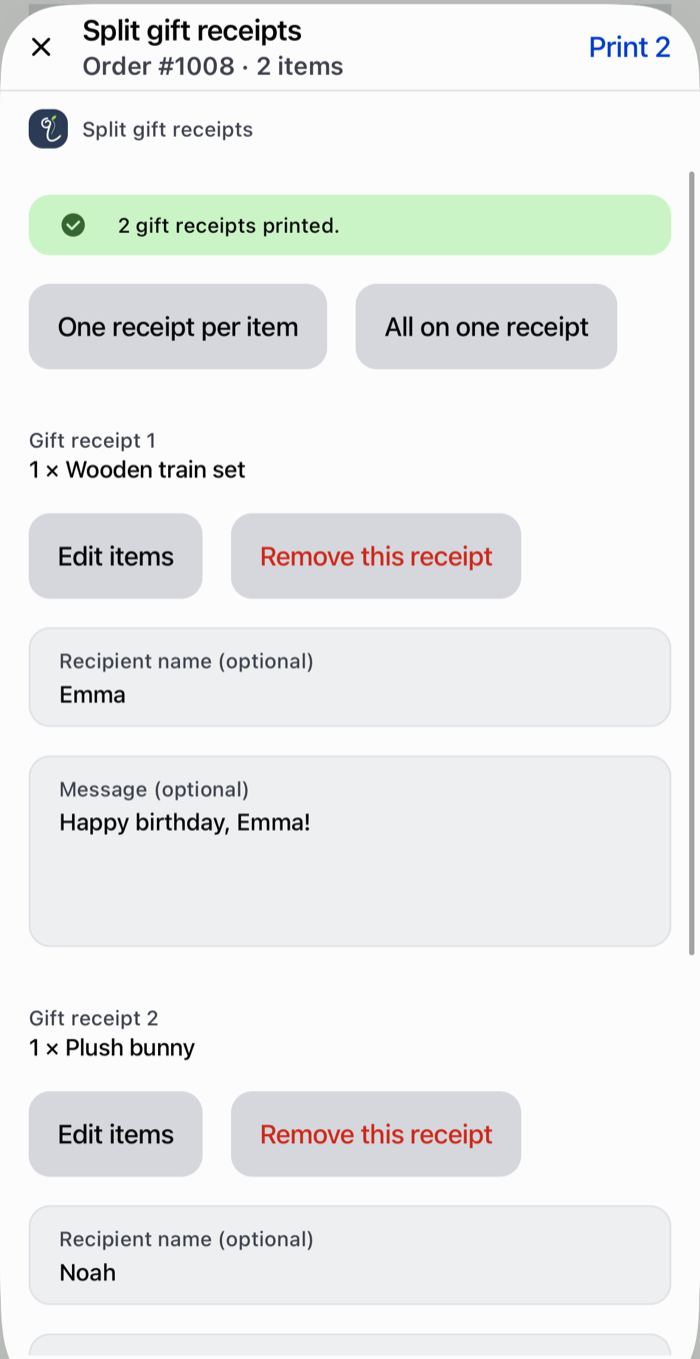
Open Split gift receipts
You can open Split gift receipts in two places:
- Right after a sale: on the screen after the sale is completed, tap Split gift receipts.
- Later, from the order: in POS open Orders, open the order, tap the more actions menu, and choose Split gift receipts. Use this for reprints or when a customer comes back for a gift receipt. It works for orders from the last 60 days.
No tile is needed, and nothing has to be added to the POS home screen.
The screen shows the order number and the number of items, for example Order #1008 · 2 items.
Split the items
Start with one of the two buttons:
| Button | Result |
|---|---|
| One receipt per item | One gift receipt for each item on the order. |
| All on one receipt | A single gift receipt with every item. |
Then adjust each receipt:
- Edit items changes which items and quantities are on a receipt. Tap Done when you finish.
- Add another receipt adds an empty receipt you can fill with Edit items.
- Remove this receipt removes a receipt. Its items are no longer on any receipt.
- Recipient name (optional) prints after the recipient label, for example "For: Emma".
- Message (optional) prints in the middle of the receipt, for example "Happy birthday, Emma!"
If some items are not on any receipt, the screen tells you, for example "1 item is not on any receipt." Receipts without items are skipped when printing.
Print
Pick the printer at the bottom of the screen and tap Print at the top (it shows the number of receipts, for example Print 2). The receipts print one after the other, each as its own job, so the printer cuts between them. When they are done, POS shows "2 gift receipts printed."
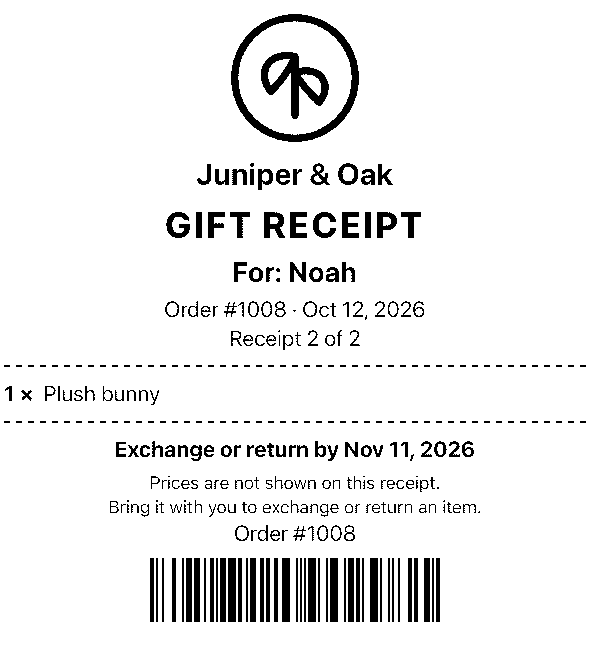
Each receipt shows:
- your logo and store name, and the receipt title (GIFT RECEIPT)
- the recipient name, if staff typed one
- the order number, order date, and "Receipt 1 of 2"
- the items and quantities on that receipt, without prices
- the message, if staff typed one
- the exchange deadline, the return policy text, and the order barcode or QR code
Exchanges
When the customer returns with a gift receipt, scan its barcode in POS with the camera or a scanner (search on the Orders screen). POS opens the original order, the same way it does with Shopify's own receipts. Then process the exchange or return as usual in POS.
Recipient names and messages
Names and messages are printed and then discarded. The app does not save them. See Data and uninstall.