Automation
Open a batch and go to Automation. It shows Codes in Shopify, Handed out by Flow, and Codes left.
Add codes
Enter a Number of codes and select Add codes (Basic plan and above). New codes use the batch's format and discount and count toward this month's limit. You can add codes to batches whose codes the app generated, once the batch has finished.
When codes run low
On the Pro plan, set Alert below to a number of codes. When fewer codes are left, the app starts the Shopify Flow trigger and sends an email if notifications are on. Tick Add codes automatically and set Codes to add to refill the batch each time the alert fires, within this month's limit.
Email notifications
On the Pro plan, choose in Settings → Notifications when to get an email: Only when something needs attention (a batch fails or partly fails, or codes run low) or When any batch finishes, and when something needs attention. Emails go to the address in Send to, in the language of the admin user who last saved Settings.
Shopify Flow
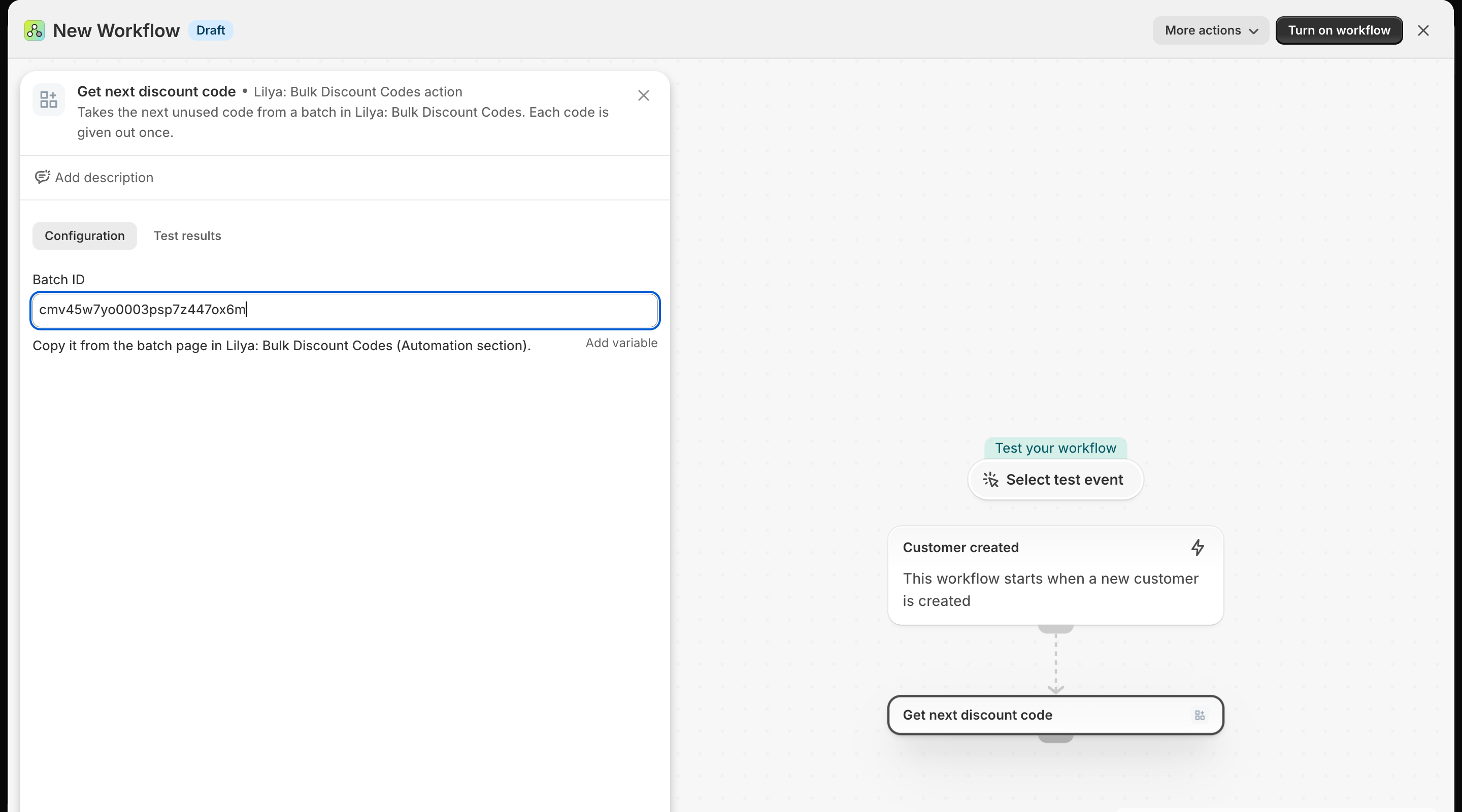
Shopify Flow needs the Pro plan and a Shopify plan that includes Flow. Copy the Batch ID from Automation → Shopify Flow and use it in these steps:
| Step | What it does |
|---|---|
| Action Get next discount code | Returns the next unused code of the batch, the share link, and how many codes are left. Each code is handed out once. |
| Action Add codes to batch | Adds new codes to the batch, within your monthly limit. |
| Trigger Discount code batch completed | Starts when a batch finishes adding its codes to Shopify. |
| Trigger Unused discount codes running low | Starts when a batch drops below its Alert below value. |
Example: Customer created → Get next discount code → send the code in a customer email or save it to a customer metafield.